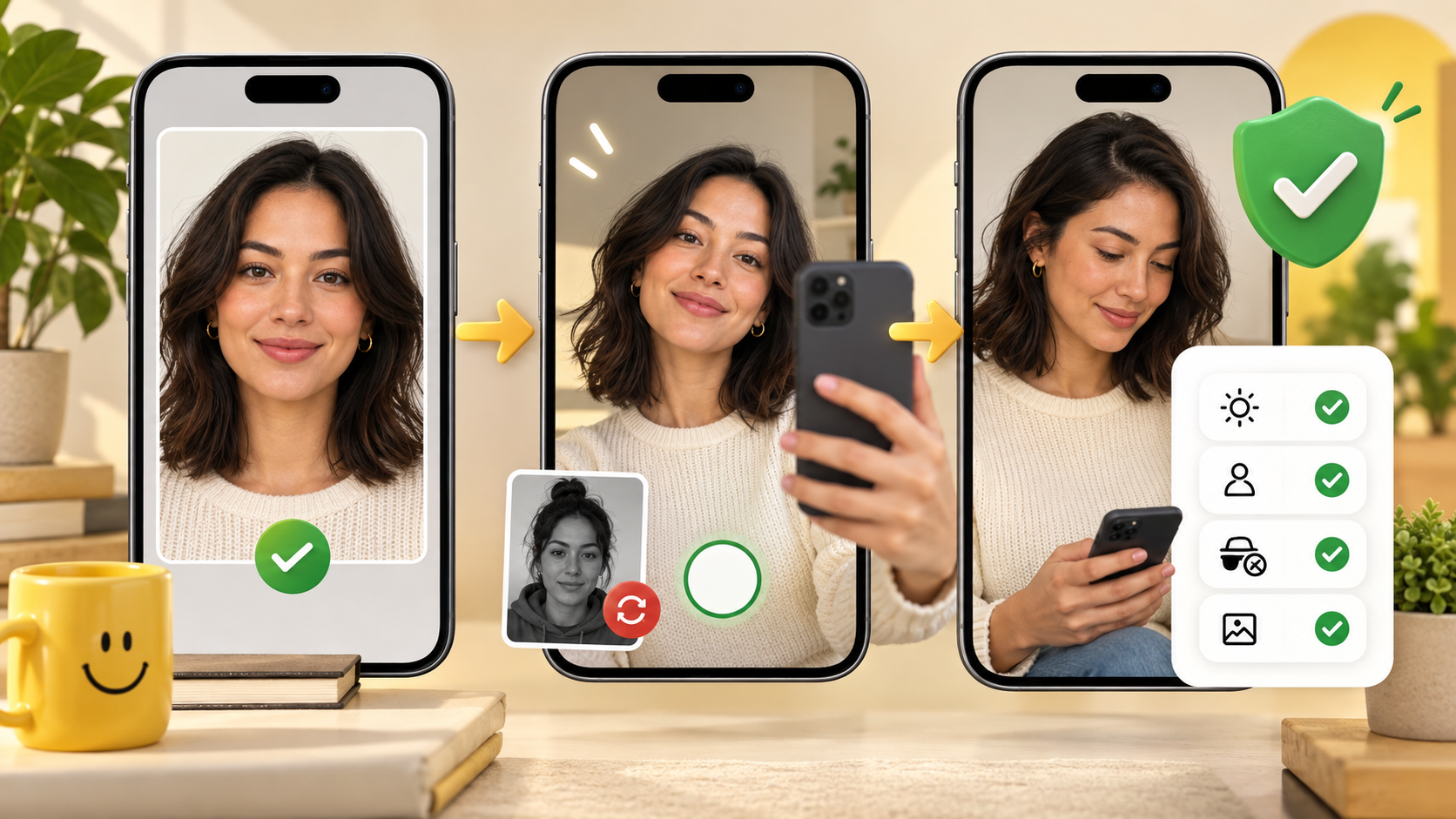
If Bumble photo verification is not working, first check whether the camera will open, the selfie was rejected or the verification screen is stuck. Each needs a different fix. Bumble requires a live selfie; an edited profile picture or an AI-generated portrait cannot replace that step.
Find the problem first
| What you see | What to try next |
|---|---|
| Camera will not open | Enable Bumble's camera permission, update the app and restart the device. |
| Selfie or pose rejected | Match the on-screen pose and hand gesture, use even light and show your full face. |
| Stuck on photo verification | Force-close and reopen Bumble, switch Wi-Fi or mobile data, then restart. |
| No clear reference photo | Add a recent, unobstructed full-face profile photo of yourself. |
| All attempts used | Contact official Bumble support instead of repeating the same setup. |
These steps follow Bumble's verification troubleshooting guide. Bumble allows up to three attempts in total.1
The short version
- Open your own profile and tap the verification option.
- Allow camera access when prompted.
- Copy the requested pose precisely.
- Keep your full face visible in bright, even light.
- Submit the live selfie and wait for the result.
Bumble's current verification guide says it compares the submitted selfie with profile photos using automated and human review, then reports whether the attempt was accepted.2
The selfie is for verification, not a new public profile photo. Bumble says it stores the submitted image for verification but does not show it on your profile.
Before you tap verify
Treat the process like a quick identity check, not a portrait session. The system needs an unobstructed view that can be compared with the person already visible in your profile.
Check your profile first
Make sure at least one uploaded image clearly shows you alone. A distant group photo, heavy filter, very old portrait, sunglasses, or a face covered by hair gives the comparison less useful visual information.
Bumble's profile-photo guidance recommends clear, well-lit images with a visible face and advises against heavy filters or overly edited pictures.3
This does not mean every photo must be a formal headshot. It means your profile should contain at least one recent image in which another person could recognize you quickly. Use the first-photo selection ideas in the dating profile photo guide if your opening image is unclear.
Prepare the live selfie
- Face a window or another broad light source.
- Wipe the front camera lens.
- Remove sunglasses, hats, filters, and anything covering your face.
- Hold the phone steady at eye level.
- Keep your full head and requested gesture inside the frame.
- Do not submit a saved image, screenshot, or picture of another screen.
The goal is not to look unusually polished. It is to look recognizably like the person in the profile.
Why Bumble verification fails
Camera permission is off
On iPhone, open Settings, find Bumble, and allow Camera access. On Android, open the Bumble app permissions and allow Camera. Then fully close and reopen Bumble.
If the camera opens as a black view, freezes, or immediately returns to the verification screen, test the normal Camera app. A device-level camera problem cannot be fixed inside Bumble.
The requested pose is not matched
Do not approximate the gesture. Look closely at head angle, hand position, and which side of the frame the example uses. Keep the face visible while matching it.
The selfie is too dark or blurred
Move toward a window, hold the phone with both hands, and keep the lens near eye level. Avoid a bright window directly behind you because it can leave the face too dark. A one-minute practice from the photogenic practice plan can help you find a repeatable camera distance without adding filters.
Profile photos do not provide a clear comparison
Add a recent, unfiltered solo image in good light before trying again. If your profile is mostly group photographs or stylized edits, the live selfie may not have a strong reference.
The app or network is stuck
Force-close Bumble, switch between Wi-Fi and mobile data, restart the device, and make sure the app is current. Change one variable at a time so you know what helped.
Use retries deliberately
Bumble's troubleshooting guide says you have up to three attempts to complete verification.1 This is a total attempt limit, not three extra retries after the first failure.
After a failure:
- Stop and identify one visible problem.
- Correct that problem.
- Compare your live appearance with the clearest solo profile image.
- Make the next attempt in different, better conditions.
If the first attempt was dark, improve light. If the face was partly hidden, remove the obstruction. If the profile has no clear solo photo, fix the profile first. Repeating the same setup is unlikely to produce a more useful comparison.
Verification and photo moderation are different
Verification asks whether the live person matches the profile. Photo moderation asks whether an uploaded image follows platform rules. A profile photo can be rejected or removed for content reasons even if your identity is genuine, and a verification failure does not automatically mean a profile photo violated a rule.
This distinction matters when you contact support. Report whether you are blocked at the live selfie, received a verification rejection, cannot access the camera, or had a profile image moderated. Those are different failure paths.
What happens in the United States
Bumble's help center currently says Photo Verification is mandatory for users in the United States and cannot be skipped.2 Platform policies can change, so this article was checked on October 19, 2026. If the app presents a requirement that differs from this guide, follow the current in-app instruction and recheck Bumble's official support page.
How long does Bumble photo verification take?
Bumble says it normally reports the result within a few minutes.2 This is not a guaranteed wait time. If the screen is not progressing, use the stuck-screen steps above. If you have used all your attempts, contact support. There is no legitimate bypass that lets a saved or generated image stand in for the live selfie.
When to contact Bumble support
Escalate when you have used the available retries, the camera works in other apps but not in Bumble, or the verification screen remains stuck after a restart and network change.
Bumble's official contact guidance routes app users through the Help Hub from the Profile page and also provides a web contact path.4
Include:
- the device and operating-system version;
- Bumble app version;
- the exact message shown;
- whether camera permission is enabled;
- which troubleshooting steps you already tried;
- your Bumble User ID if requested through an official support channel.
Do not send passwords, login codes, or identity documents to accounts claiming to be support outside Bumble's official channels.
A better verification attempt
Use one current solo profile photo, a clean lens, bright front light, an unobstructed face, and the exact requested pose. That gives both the automated check and any human reviewer a clear comparison. Once verification is complete, you can improve the rest of the profile with the Tinder profile-picture guide or plan a wider set using the full-body selfie methods.


