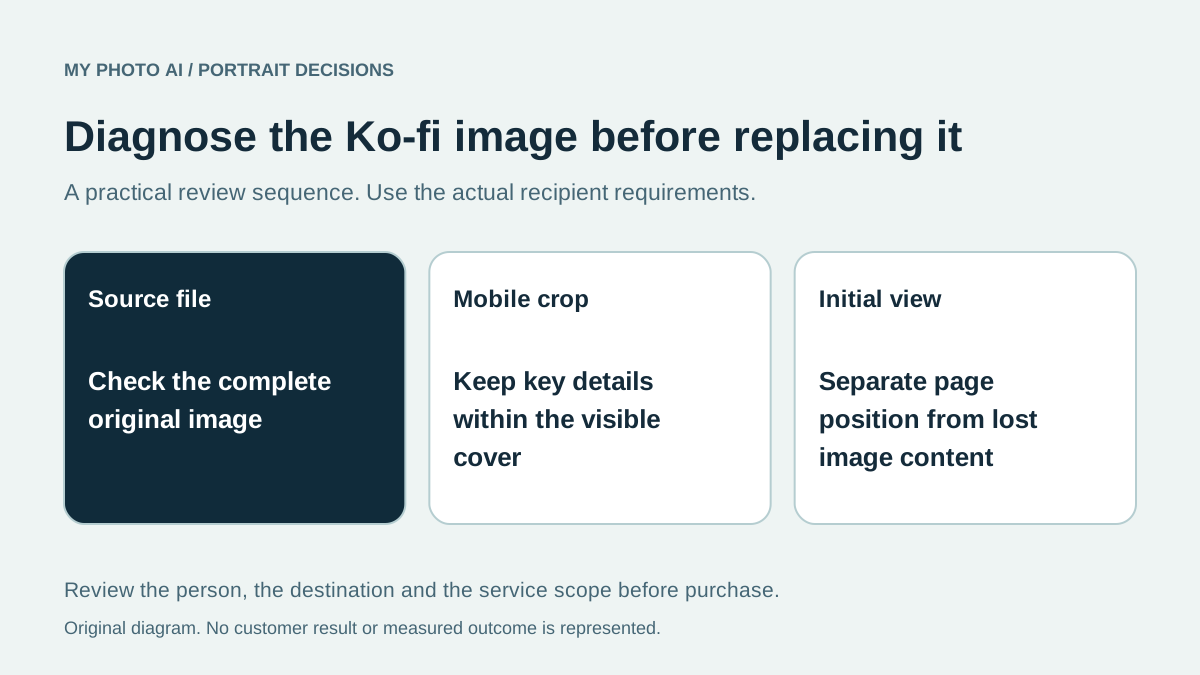
If a Ko-fi page image looks wrong, first identify whether the issue is the profile picture, the cover composition or where the page initially opens. Those are different problems. A new portrait purchase will not necessarily fix a wide cover or change the platform's initial scroll position.
Ko-fi's official cover guide says the page can load partway down the cover to bring visitors to the main content.1 Do not assume that this means the original file has lost its top half or that the portrait must be regenerated.
We publish MyPhotoAI. Official Ko-fi guidance was checked October 19, 2026. We have not edited a creator page, tested image uploads or measured support or sales from a particular design.
Identify what is actually missing
| Observation | Check first | Work that may be needed |
|---|---|---|
| Person image looks outdated | The original profile photograph | A crop, edit or replacement portrait |
| Cover loses side details on mobile | The actual cover composition | A wider layout with safer positioning |
| Page opens partway down the cover | Scroll upward and inspect the complete file | The documented initial view may explain it |
| Artwork fails to upload | Current field format and size requirements | A corrected export rather than a new shoot |
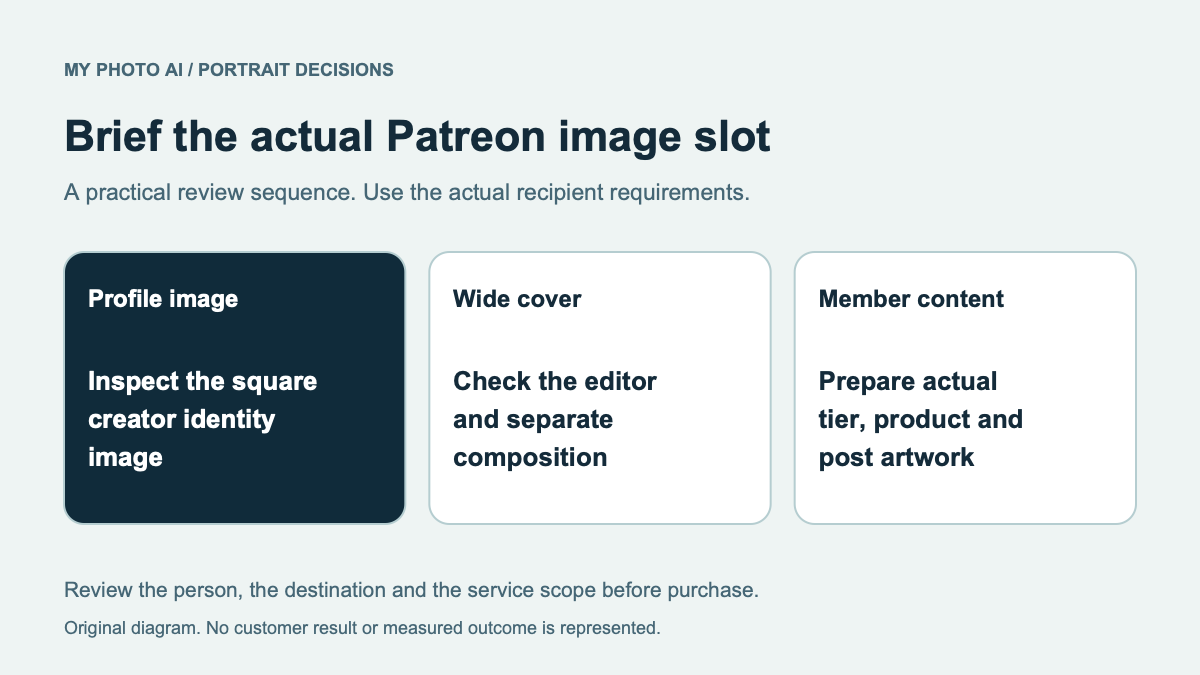
Ko-fi's getting-started guide places the profile picture in account settings and describes a separate cover image.2 A person portrait and a wider cover should therefore be separate lines in the production brief.
Prepare the cover for its own shape
Ko-fi recommends a 3:1 cover, ideally 1200 by 400 pixels, under 8 MB, in JPEG, JPG or PNG. Its cover FAQ describes static images and notes that the sides may be cropped on mobile.1
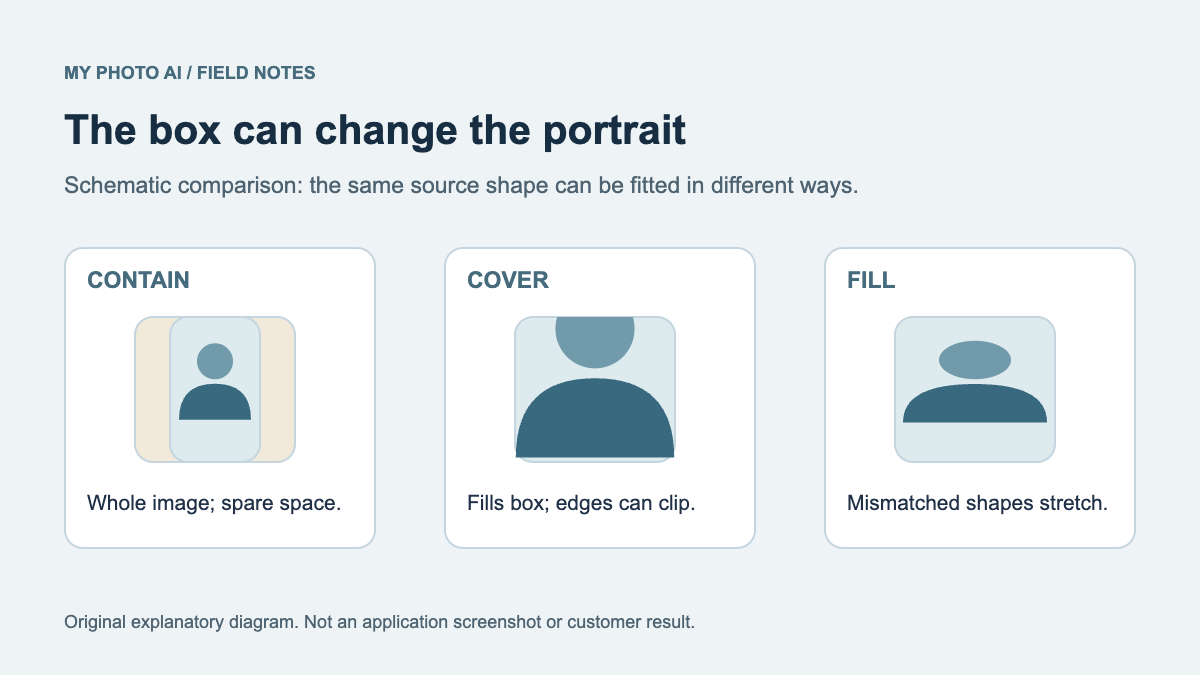
Keep the important face, original mark or wording away from vulnerable edges. Inspect both the whole cover and the actual narrow-screen view. A square portrait stretched across that wide space may distort the face or remove useful context.
If your portrait already works, ask whether the remaining job is layout. An editor or designer can place a suitable source within a wider composition. That is different from buying another set of faces and hoping one happens to fit.
Check the initial view separately
Ko-fi explains the partial-cover starting position as a way to show the main content sooner.1 Scroll to the top and compare the complete image with the uploaded source before diagnosing a crop defect.
If the file is intact but essential text is hidden in the initial view, reconsider the cover design and the placement of that message. Do not rely on a cover image as the only place explaining your offering. Keep the actual page content accurate and readable too.
No layout check in this guide establishes a measured increase in tips, memberships or commission requests. Choose a design that communicates the actual purpose rather than buying on an untested earnings claim.
Compare the portrait purchase with the design work
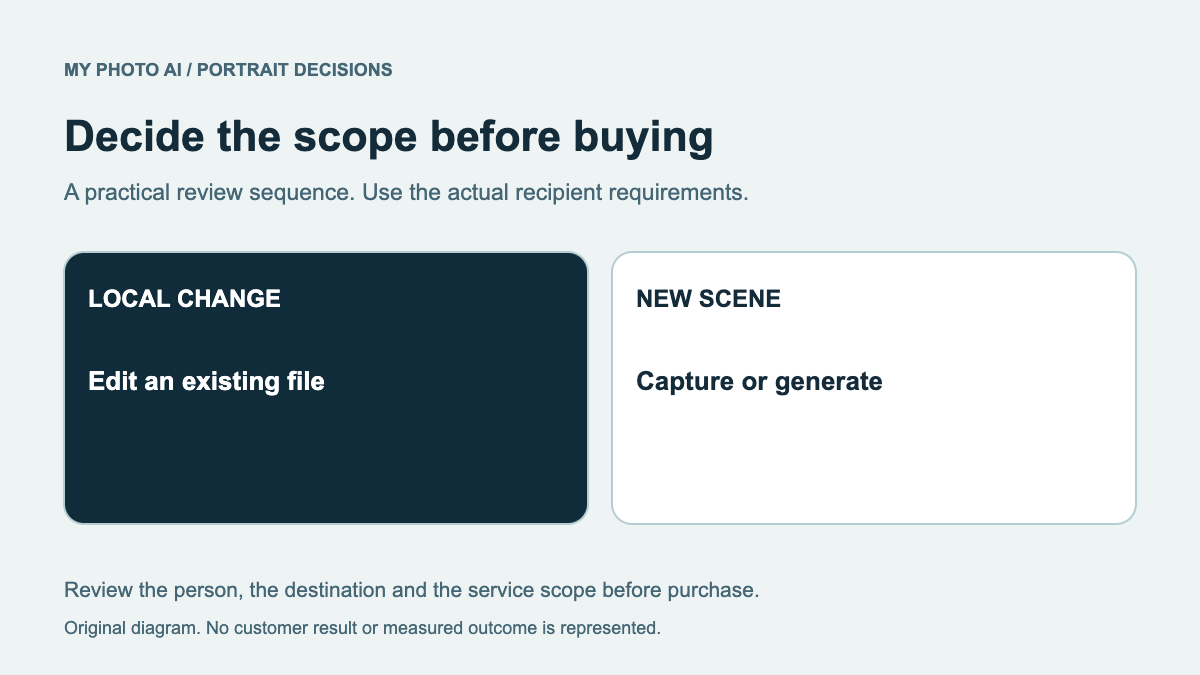
For a new personal image, review likeness against a current real photograph before background and styling. If a current source already fits the profile crop, reuse it. If you need original branding or a cover composition, brief that work explicitly.
MyPhotoAI's current US offer includes 3 HD photos for US$5, 10 for US$10, or all photos from one shoot for US$10.3 Personalized generation starts after payment. There is no subscription in that offer, and another shoot requires another purchase.
The allowance is for portrait photos, not a full Ko-fi page design, animated cover or account setup. Generation can take over an hour, and final file preparation remains a separate step. The crop guide and retouching guide help identify when a new export or bounded edit is enough.
Download the Ko-fi image diagnostic sheet. Check the source, cover and page position separately before spending on replacement imagery.