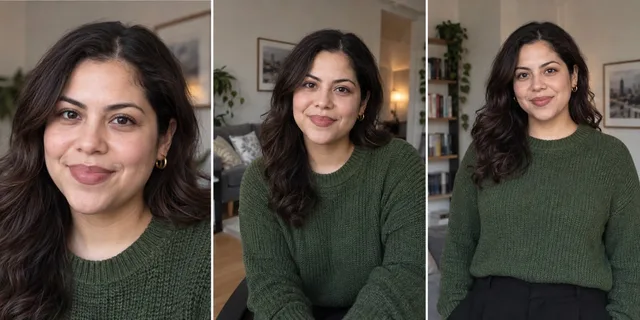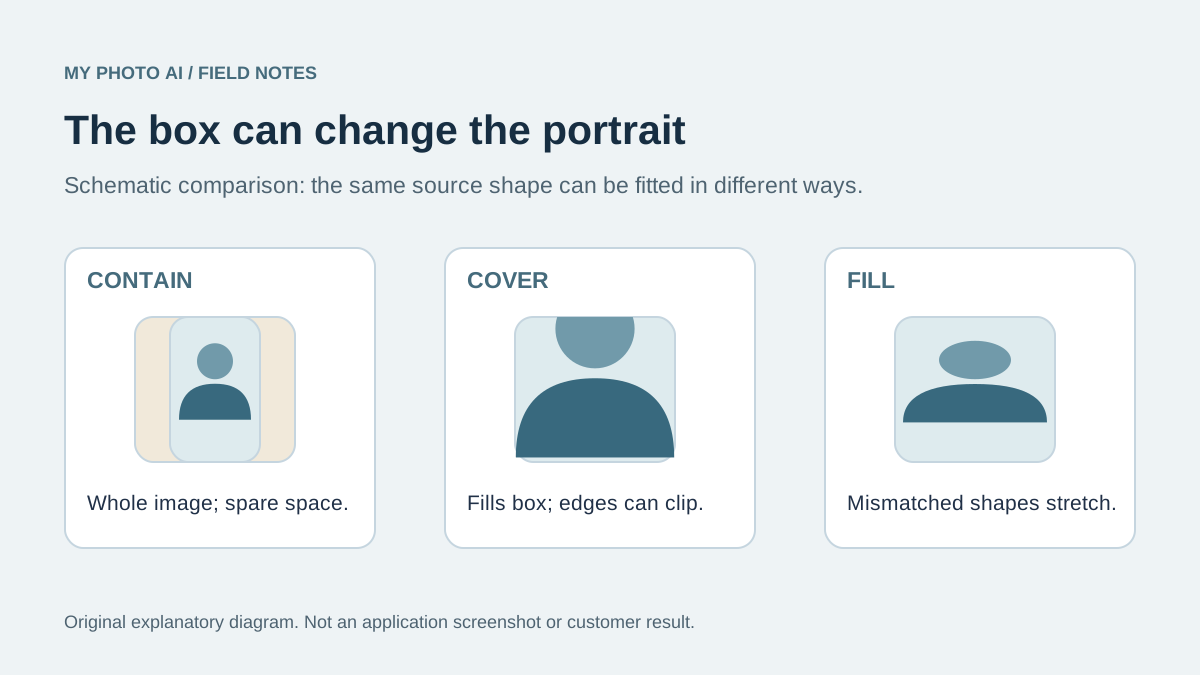
If your bio photo looks fine in the media library but loses half the face on the website, inspect the layout before taking another photo. The page may be putting a tall portrait inside a wide box and cropping whatever does not fit.
Keep a spacious source portrait, identify the shapes the website actually uses, and check the published placement at desktop and mobile widths. A single tightly cropped export is rarely a flexible starting point for several differently shaped components.
Ask for the box, not just an image width
A site owner may request a 1200-pixel image without explaining the visible shape. Ask whether the photo appears as a square staff card, a vertical biography portrait, a circle or a wide banner. Also ask whether that shape changes on a phone.
| Placement | What to find out | Source space worth preserving |
|---|---|---|
| Staff card | Square, circle or fixed rectangle? | Room around the full head |
| Biography column | Fixed ratio or natural image height? | Shoulders and some background |
| Wide introduction | Is text placed beside or over the photo? | Space on the intended text side |
| Mobile version | Same image or a separate crop? | A face that survives the narrow view |
Do not fill empty areas with important text before checking the component. A name embedded in an image can be clipped even when the face survives.
Understand the three common fitting behaviors
The browser's fitting rule can explain a surprising crop. In MDN's object-fit documentation, contain preserves the whole image inside its box, cover fills the box while clipping excess, and fill can stretch an image when the shapes differ.1
The practical implication is simple: making a file larger does not fix a shape mismatch. A bigger tall portrait can still lose its top and bottom in a wide cover box.
The companion object-position property controls alignment inside that box.2 If the site supports a focal-point control, adjusting it can move the visible crop. It cannot reveal space that was never present in the source.
Prepare a source and deliberate delivery crops
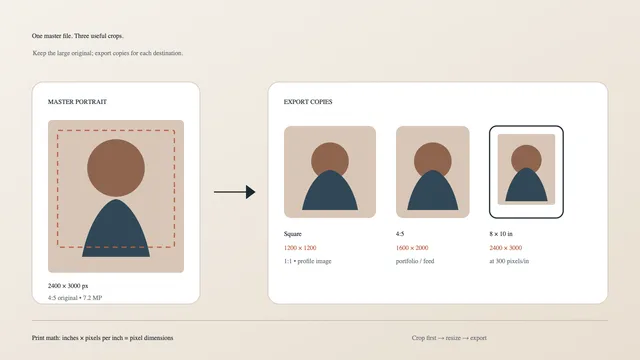
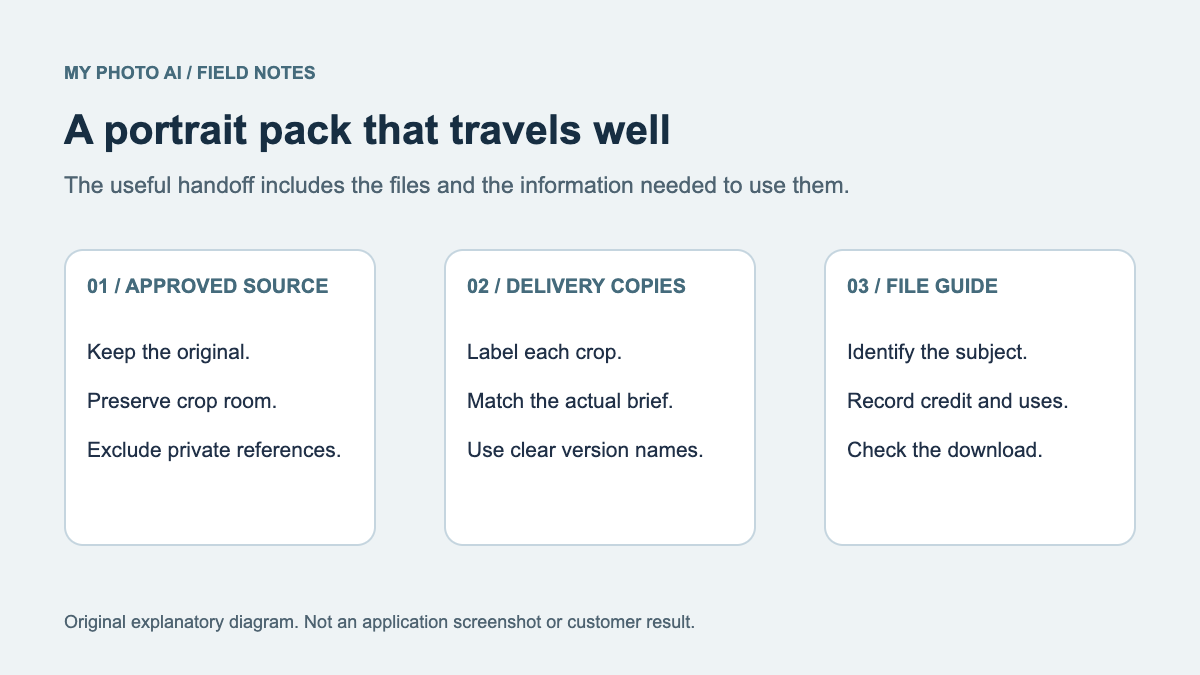
Start from the largest clean portrait you have permission to use. Keep it unchanged. Make separate copies for the site's actual placements rather than saving each new crop over the previous one.
A square and a vertical version can be useful delivery options when the site owner asks for them. They are not universal website specifications. If a desktop banner needs much more background, return to a wider original rather than stretching the portrait sideways.
Record each export's filename, ratio, pixel dimensions and intended placement. If several people maintain the website, this small manifest helps prevent a carefully prepared bio crop from being replaced with a different social avatar.
Use the headshot dimensions guide for pixel and ratio calculations. For a different problem, such as adapting one portrait to workplace accounts, see Slack, Zoom and LinkedIn crops.
Give the site owner a clear crop request
A useful message describes the visible failure and the intended result:
The desktop bio card cuts the top of the hair. Please check the image box ratio and focal point. I have supplied the wider source and a square option. Keep the face recognizable in the mobile version as well.
If you edit the website yourself, inspect the component's width, height, fitting rule and breakpoint changes. Change one setting at a time and compare the same file. Do not assume a browser issue when a content-management system has already generated a tight thumbnail.
Test the page where visitors see it
Check the actual page, not only an upload preview. Review a wide desktop view, a narrow phone view, and a width between them. Our worksheet suggests 1440, 768 and 390 CSS pixels as practical sample widths, not device coverage guarantees.
At each width, check the hairline, eyes, chin and shoulders. Then read the adjacent bio: does the portrait still look connected to the right name? Is the face obscured by a badge, text or a rounded mask? If the image is informative, supply useful alternative text according to the role it has on that page.
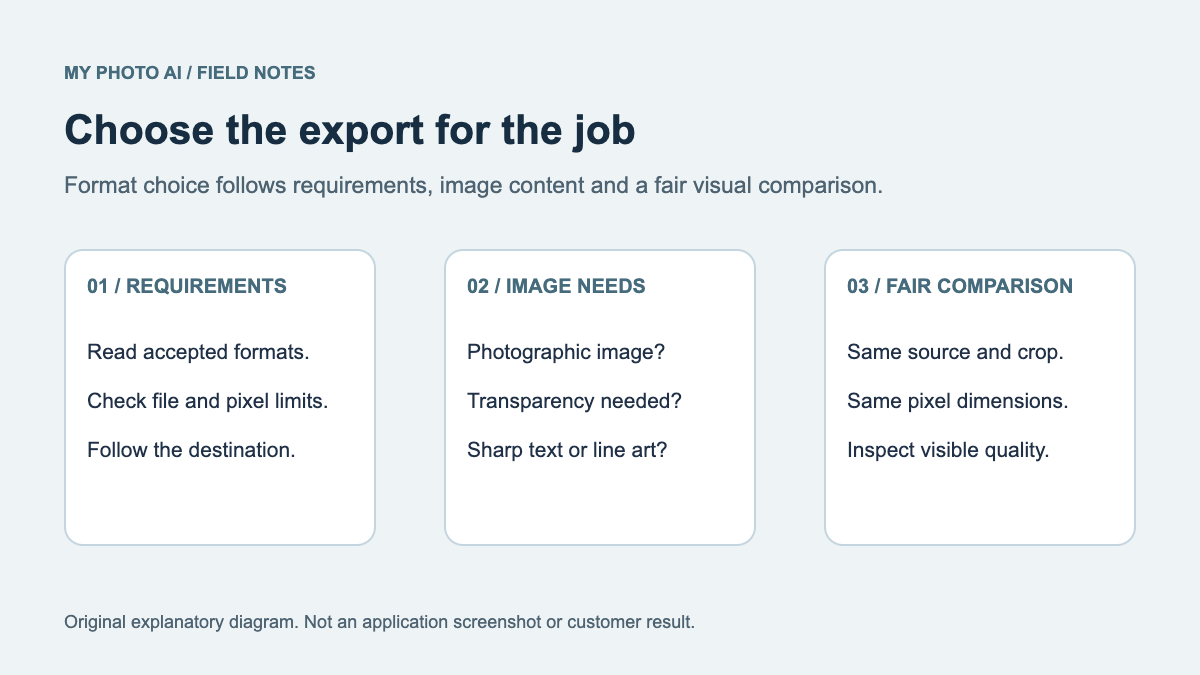
A smaller file can be appropriate for a small card, but a soft source will remain soft. Cropping, compression and focus are different problems. The JPEG-versus-PNG guide helps with format choice after the framing is right.
Keep a crop record
Download the website portrait crop worksheet. It records the source, placement, display behavior and review result at three sample widths.
The diagram above explains fitting behavior using schematic shapes. It is not a measurement of a particular website. Your final check is the actual page with your actual portrait, including whichever thumbnails and masks the site creates.