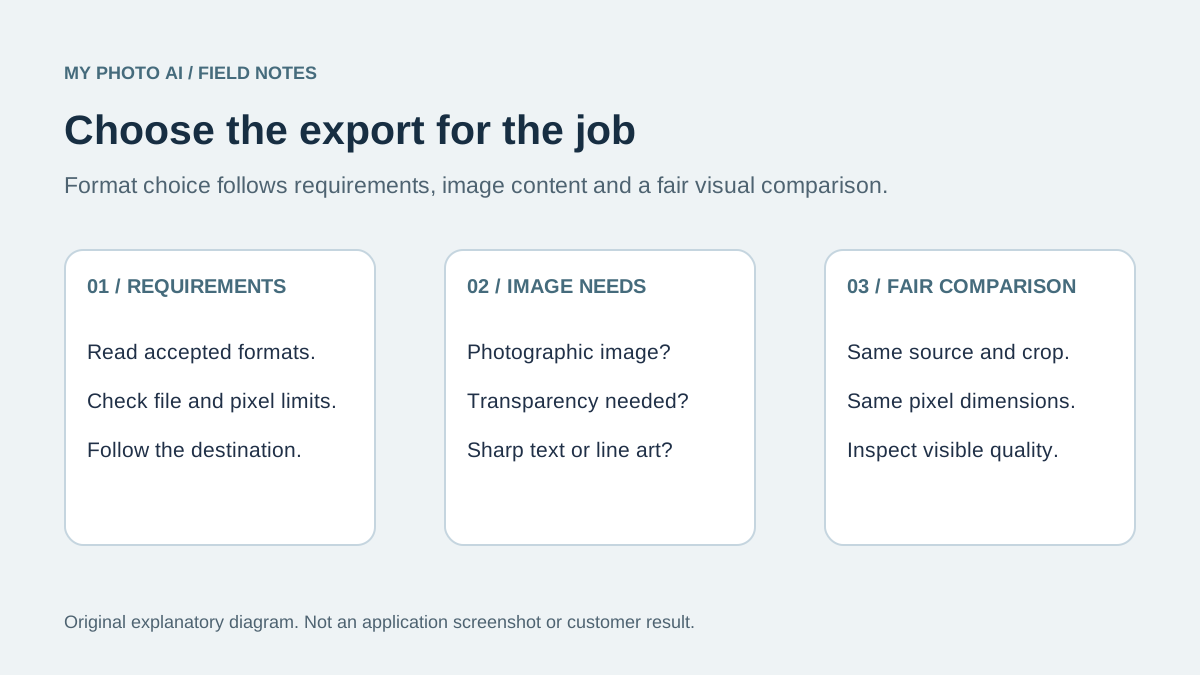
For a normal photographic profile picture, start with a good JPEG if the destination accepts it. Choose PNG when you need transparency, need to preserve sharp graphic elements, or the receiving site specifically requests it. Keep the original file so you can make another export without starting from a compressed copy.
The right choice depends on the image and the destination. PNG does not automatically make a portrait sharper, and JPEG does not automatically make it unsuitable for professional use.
Make the decision in this order
First, read the upload form. If it accepts only one format, that requirement decides the delivery format. Next, decide whether the image really needs a transparent background. Only then compare the visible result and file size.
| Situation | Starting choice | Why |
|---|---|---|
| Ordinary portrait with an opaque background | JPEG | Usually a practical photographic delivery format |
| Cutout portrait that must stay transparent | PNG | Can retain an alpha channel |
| Portrait combined with crisp text or line art | Try PNG | Avoids JPEG losses around graphic edges |
| Form requires a specific format | Required format | Acceptance comes before preference |
| Website managed by a developer | Ask about the delivery pipeline | The site may produce other formats itself |
MDN's image format guide describes JPEG as lossy and useful for photos, while PNG uses lossless compression and supports alpha transparency. It also explains why JPEG is a poor fit for some sharp diagrams and graphics.1
Lossless does not mean repaired
Lossless encoding preserves the pixels supplied to that export. It does not restore details already lost from a blurry source or a heavily compressed JPEG. Converting an old JPEG to PNG may produce a larger file while preserving the same visible defects.
Similarly, changing .jpg to .png in a filename is not conversion. Export or convert the image using software that writes the intended format. Keep the original until you have opened the new file and confirmed that it looks right.
If you need a format conversion, use the image converter. If the format is already accepted but the file is too large, investigate dimensions and compression with the image compressor.
Compare the same crop at the same size
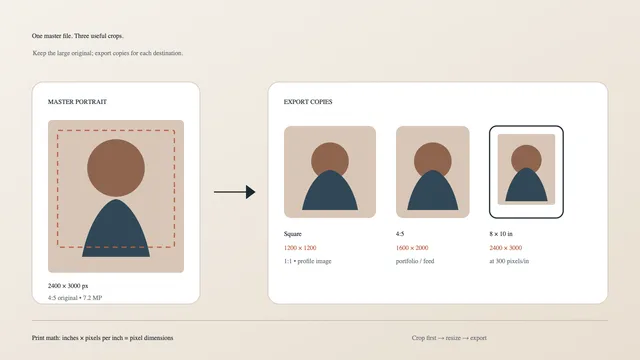
An unfair comparison is easy to make: a small JPEG beside a much larger PNG will tell you little about the format. Use the same source, crop and pixel dimensions for both exports. Keep the same color settings where the software allows it.
Open both files at their intended display size. Then inspect them at 100% for halos near glasses, blocky patches in smooth backgrounds and unwanted edge changes. Choose the smaller accepted file when the visible result is good enough for its actual use. There is no universal quality-slider number across different programs.
This article does not report a measured JPEG-versus-PNG benchmark. The linked worksheet is a recipe for comparing your own image. Results depend on the photo, dimensions, export settings and encoder.
Transparency needs a deliberate check
A transparent PNG can look different against a light and dark background. Preview it on both if you do not control where it will be displayed. Inspect the hair and shoulders for unwanted remnants from background removal.
JPEG does not retain an alpha channel.1 If you export a transparent cutout as JPEG, choose an intentional background rather than relying on an unexpected default. A profile service may flatten or recrop an uploaded image anyway, so inspect the result after upload.
Do not confuse storage size with pixel dimensions
A file limit such as 5 MB describes storage, not the width or height of the portrait. A small pixel image can still be a large file, and a large pixel image can be compressed aggressively. Check both conditions when an upload fails.
For example, Google's Workspace profile-photo requirements currently accept JPEG or PNG and separately specify a 5 MB file limit and a maximum pixel count of 20 million.2 Those are Google Workspace requirements, not a standard for every profile site.
The headshot dimensions guide explains crop ratios and pixel counts. Deal with framing before comparing compression settings so you do not repeat the export with a different crop every time.
Record a useful result
Download the portrait export comparison worksheet. Fill in the actual dimensions, format, quality setting where applicable, file size, transparency requirement and visible issues. Keep the selected output beside the original so you can reproduce it later.
If both files look poor, return to the source portrait. Changing the container format will not fix missed focus, a tiny face in a wide shot or an inaccurate generated face. For the last problem, use the AI likeness review before spending time on exports.