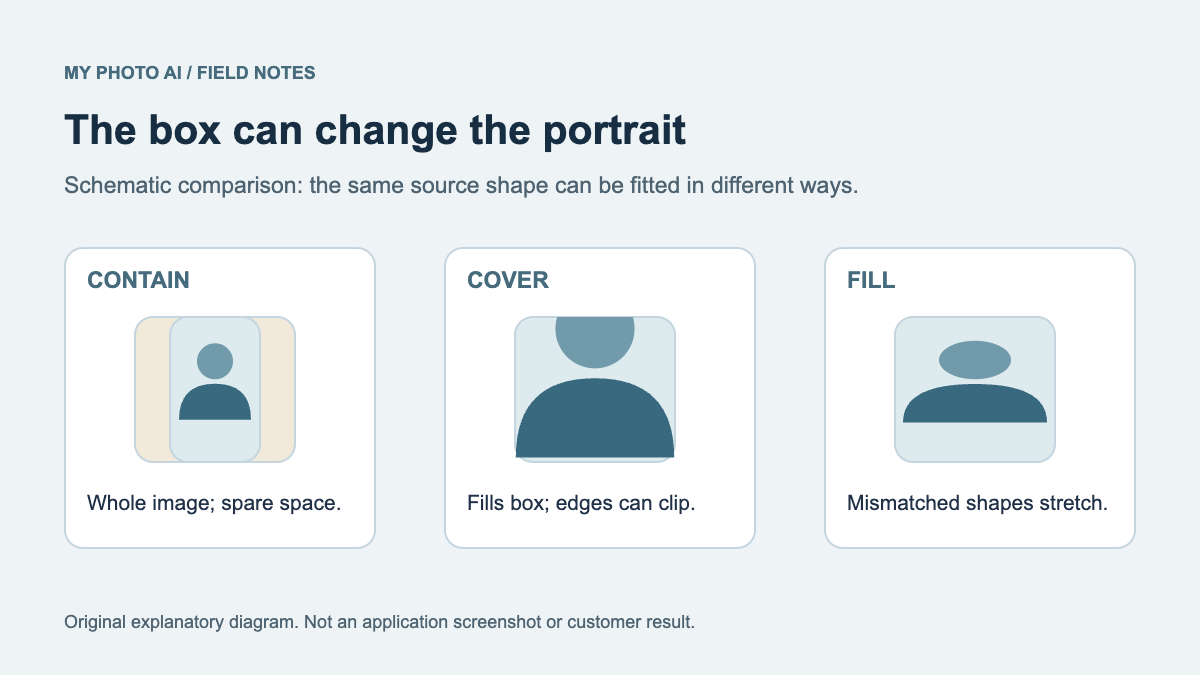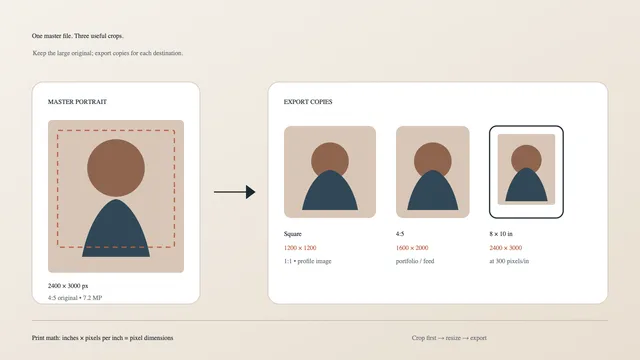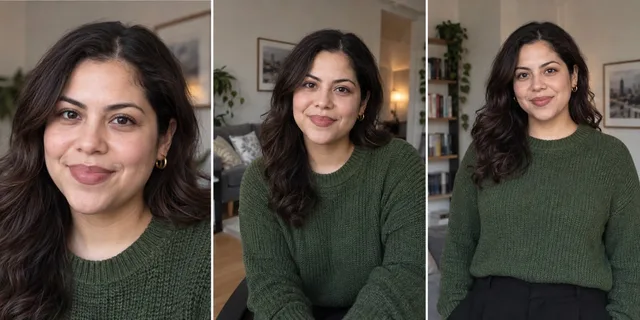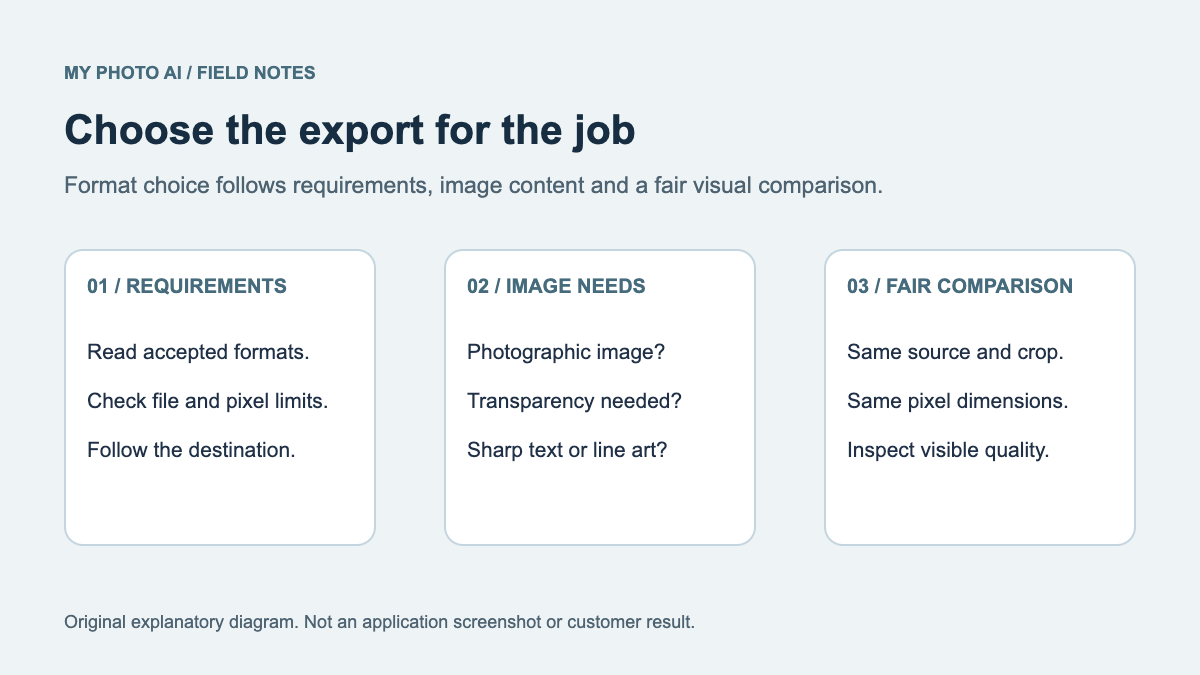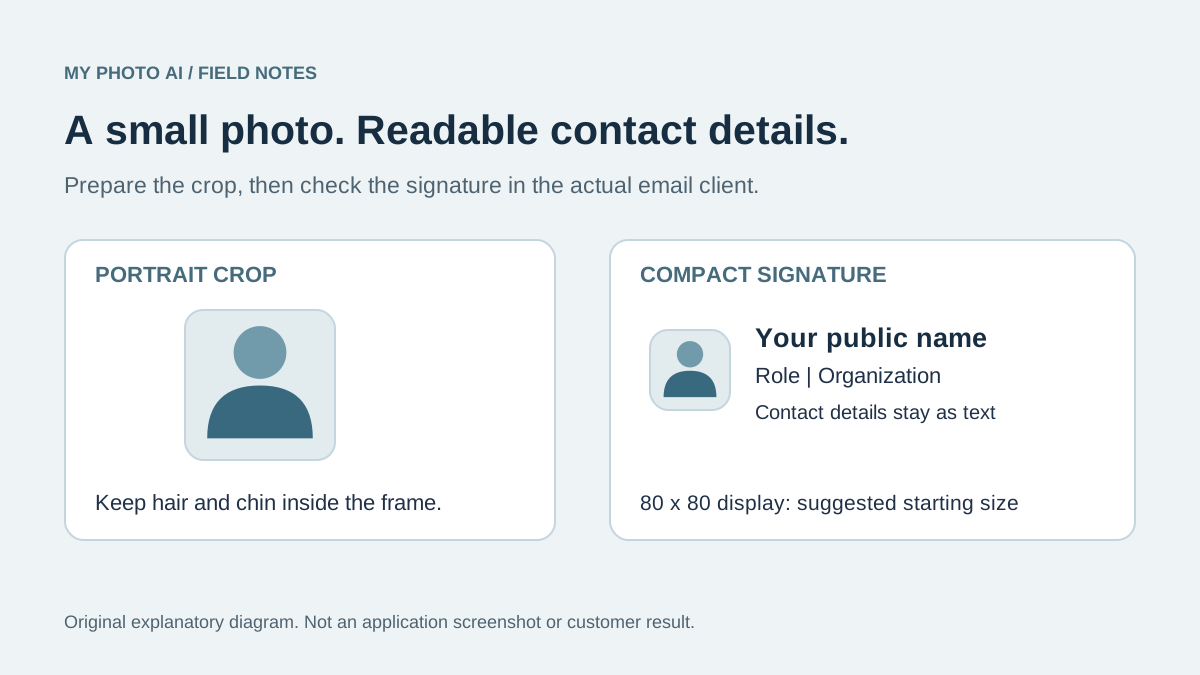
An email signature portrait should help someone recognize you without taking over the message. Start with a square head-and-shoulders crop, keep the name and contact details as real text, and inspect the signature in a new draft before making it your default.
For a compact layout, our suggested starting point is a photo displayed at 80 × 80 pixels. This is an editorial starting point, not a universal email standard. Follow your employer's template when one exists.
Separate the file from its displayed size
A photo file can have more pixels than the space it occupies in the message. That does not mean every signature editor will preserve your preferred display size. Inspect what the client actually shows after insertion.
| Item | What it controls | What to check |
|---|---|---|
| Source portrait | The detail available before cropping | Clear face, usable focus, room around hair |
| Exported file | The image you insert | Correct crop, format and pixel dimensions |
| Displayed image | Space occupied in the message | Balanced size next to the contact text |
| Recipient view | What another client renders | No stretching; contact details remain readable |
Google's signature troubleshooting page currently gives a maximum of 100 pixels high by 1000 pixels wide for signature images. That is not a recommendation to make a portrait 1000 pixels wide. A small square portrait has a different job from a wide banner.1
Make a crop that works when small
Choose a portrait where you look like the person the recipient will meet. Keep the full hairline and chin inside the crop. Remove a large empty background before shrinking the whole image, but leave enough space that the face does not feel squeezed against the edges.
Look at the export at its intended display size. A dramatic wide portrait may be attractive full screen yet reduce the face to a dot beside a phone number. If the small crop is still unclear, choose another source rather than repeatedly sharpening it.
For general export math, use the headshot dimensions guide. For other workplace avatars, use the separate Slack, Zoom and LinkedIn crop guide.
Add the photo in Gmail on a computer
Google's current Gmail instructions place signatures in Settings, See all settings, then the Signature section under General. Insert the portrait in the signature editor and save the changes.2
Select the inserted image and check the available size options. Create a new draft to see the result. Keep your name, role and contact links beside or below the photo as text rather than flattening the entire signature into one picture. This also leaves useful information when a recipient cannot see the image.
If the image is missing, confirm that the file or image URL you chose is accessible using the method Gmail supports. Google documents upload, web-address and Drive insertion routes. Changing route may help diagnose the problem; it is not a guarantee that all recipients will load an external image.1
Use the instructions for your Outlook version
Outlook has several versions, so a screenshot from classic Outlook is not a reliable map for every app. In Microsoft's signature guide, choose the tab for your version before following the steps.3
For classic Outlook on Windows, Microsoft describes inserting an image through the signature editor and resizing it through Picture settings. Keep the aspect ratio locked so a square portrait does not become an oval. Outlook on the web has its own signature settings route. Do not assume desktop image controls exist in the mobile app.3
Diagnose the visible problem
| What you see | First thing to inspect |
|---|---|
| Portrait dominates the message | Display size in the signature editor |
| Face looks stretched | Whether width and height were changed independently |
| Photo looks soft | Whether the crop was enlarged from a tiny source |
| Name and phone vanish with the image | Whether the whole signature was saved as one graphic |
| Layout differs on a phone | Width, text wrapping and the actual receiving client |
We have not run an email-client delivery comparison for this guide. The diagram is a layout explanation, not a Gmail or Outlook screenshot. Check your actual client and, when appropriate, a test message to an address you control before using the signature widely.
Copy this preflight
- Portrait is current and recognizable at the displayed size.
- Hair and chin survive the crop.
- The image keeps its original proportions.
- Name, role and contact details remain selectable text.
- New-message and reply defaults are set intentionally.
- A new draft looks reasonable on a narrow screen.
- The signature follows the organization's brand requirements.
Download the signature preflight and contact-block template. Replace every placeholder before use. If your current photo already works, reuse it. A new shoot is only useful when the source portrait itself needs replacing.