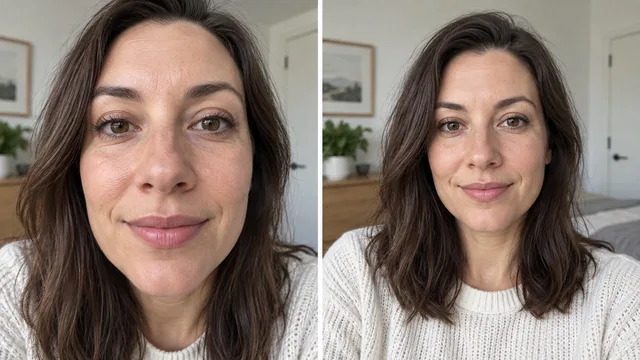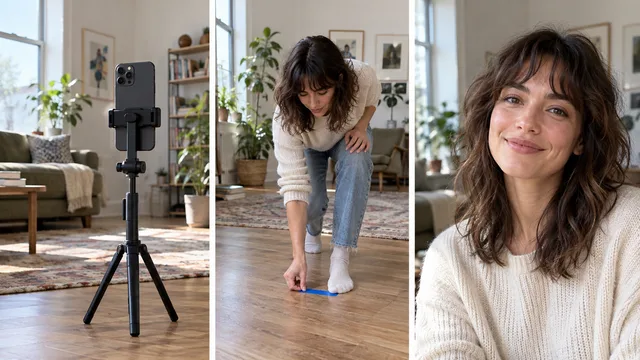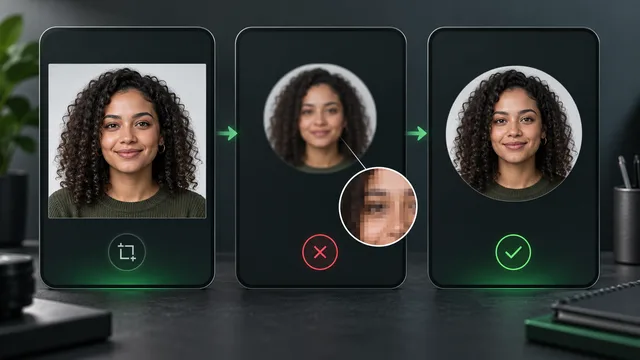
If a portrait looks upright in your gallery but sideways somewhere else, first check the exact file being uploaded. One possible cause is orientation metadata: the file can store sideways pixels with an instruction telling a viewer how to display them. An export that removes the instruction without correcting the pixels can leave a sideways result.
Make a copy, correct its visible orientation if needed, reopen the exported file, and inspect the upload preview before generating headshots. Do not rotate an already upright image just because a metadata field is missing.
The cover and phone-and-laptop scenes were generated with Codex. The comparison below comes from our recorded JPEG test.
See the difference with the same portrait
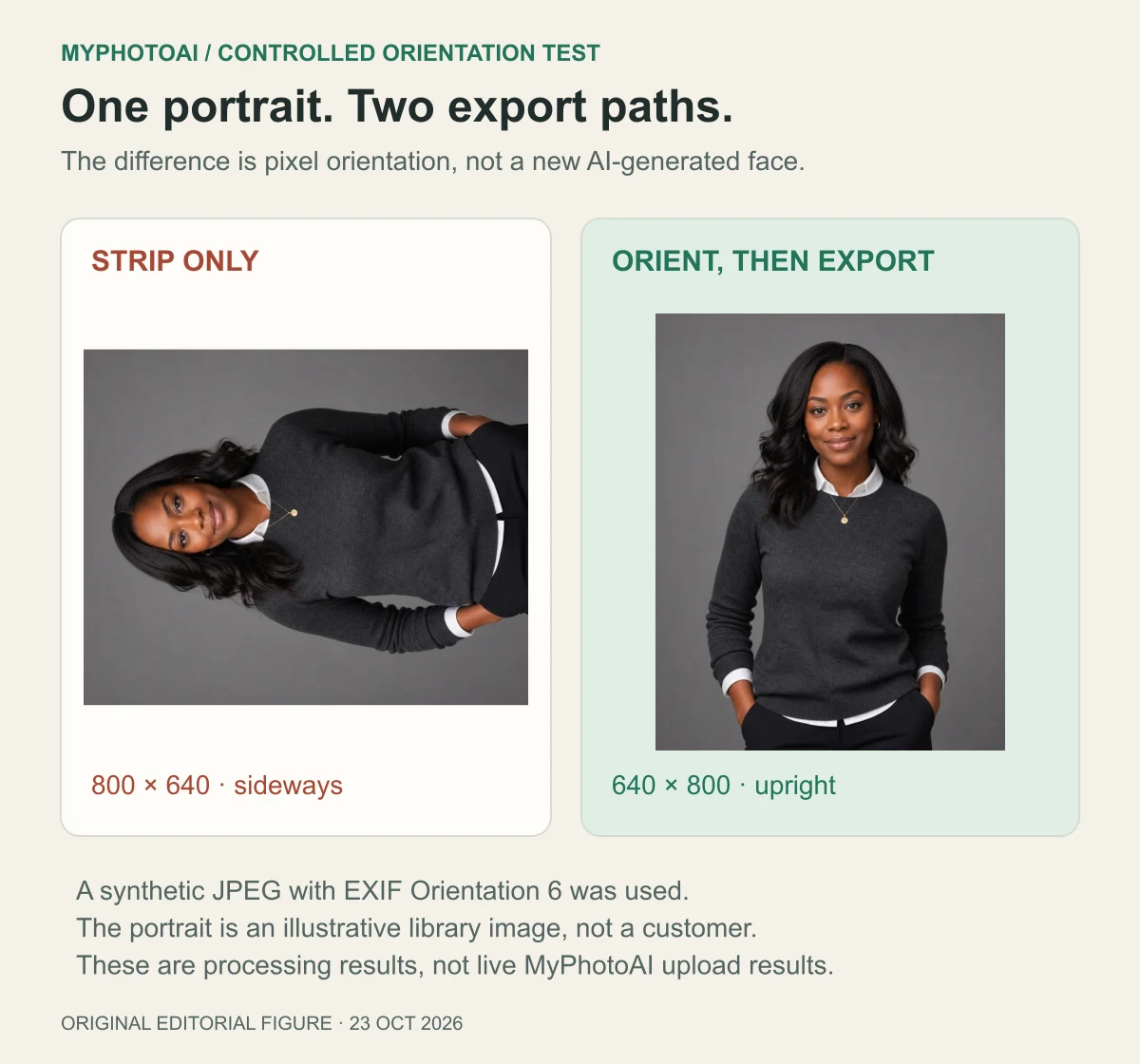
Both panels come from the same illustrative MyPhotoAI library portrait. We deliberately constructed a JPEG whose stored pixels were sideways and whose EXIF Orientation tag was 6. The left export removed metadata without applying the orientation. The right export applied the orientation before writing a clean image.
The face, clothing and background were not regenerated for the comparison. This is an image-processing demonstration, not a customer result, a likeness benchmark or evidence that a live MyPhotoAI upload is defective.
A display instruction is different from rotated pixels
Think of the orientation tag as a note attached to the image: “Turn this before displaying it.” A viewer that follows the note can show a portrait upright even when its stored pixel grid is sideways. An export pipeline has to decide whether to preserve that instruction or apply it to the pixels.
Sharp's documented automatic orientation operation reads the EXIF Orientation tag, transforms the image and removes that tag. 1 The important part is the transformation before removal.

Removing metadata is a separate operation from correcting orientation. For example, Sharp removes metadata by default when writing output. 2 In our controlled test, exporting without the orientation operation preserved the sideways pixel arrangement while discarding its display instruction.
That does not mean every metadata tool mishandles orientation. Some tools decode the displayed image and write those upright pixels into a new file. Check the downloaded result rather than assuming how a tool works from its name.
What we tested—and what the result means
On 23 October 2026, using Node.js v24.20.0, Sharp 0.34.5 and libvips 8.17.3, we used one approved illustrative library portrait, cropped to 640 × 800 pixels, to construct three JPEG fixtures. Each fixture represented an upright portrait when its orientation instruction was correctly applied.
| EXIF orientation | Stored pixel size | Size after automatic orientation |
|---|---|---|
| 1: no rotation needed | 640 × 800 | 640 × 800 |
| 6: 90° clockwise display rotation | 800 × 640 | 640 × 800 |
| 8: 90° counterclockwise display rotation | 800 × 640 | 640 × 800 |
The corrected exports had no remaining orientation tag. We also compared each corrected output with an explicit rotation of the same decoded fixture. Those outputs matched in the test.
These are deliberately constructed JPEGs. We did not capture photos on multiple phones, test HEIC or XMP orientation, benchmark generation quality, or run an end-to-end test of MyPhotoAI's main upload flow. The comparison demonstrates one failure mode; it does not establish the cause of every sideways upload.
Fix the file without guessing

- Open the exact source file. Check the version you selected for upload, not a similar thumbnail or an older export. If it is already sideways in your viewer, correct that copy first.
- Use your editor's rotation control only when needed. Keep the original. Export a new copy in a format accepted by the destination, and give it a name you can recognize.
- Reopen the saved copy. Close the editor's preview and inspect the exported file. Check the face, top edge and crop. A saved file is stronger evidence than the editor's temporary display.
- Check the upload preview. Select that exact copy in the destination. If only that destination shows a problem, retain the original and exported files and report the mismatch before spending time on generation.
If you use Google Photos on a computer, its official guide describes the Crop & rotate controls and saving a copy. 3 Button placement differs across apps, so follow the instructions for your editor rather than hunting for a universal “fix EXIF” switch.
A screenshot can be useful for showing support what you see, but it changes the image and its resolution. Keep it as diagnostic evidence rather than treating it as the preferred master portrait.
Check privacy and portrait quality separately
If you also want to remove metadata before sharing a photo, MyPhotoAI's EXIF data stripper is a related preparation tool. Download the result and check that it remains upright. Metadata removal should not be taken as proof that every visual or privacy issue has been resolved.
Before generating a portrait, inspect the reference for sharp eyes, usable framing and an unobstructed face. Correct orientation does not repair blur, replace missing detail or establish whether a generated portrait looks like you. Our headshot dimensions guide and professional headshot examples help with those separate decisions.
An upright reference is a small preparation step with a clear pass condition: the saved file and the destination's preview both show the portrait the way you intend to use it.