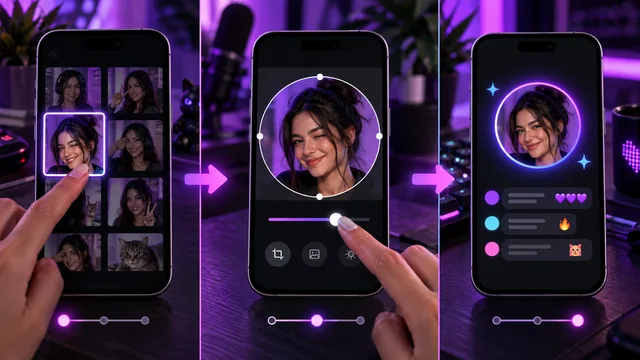
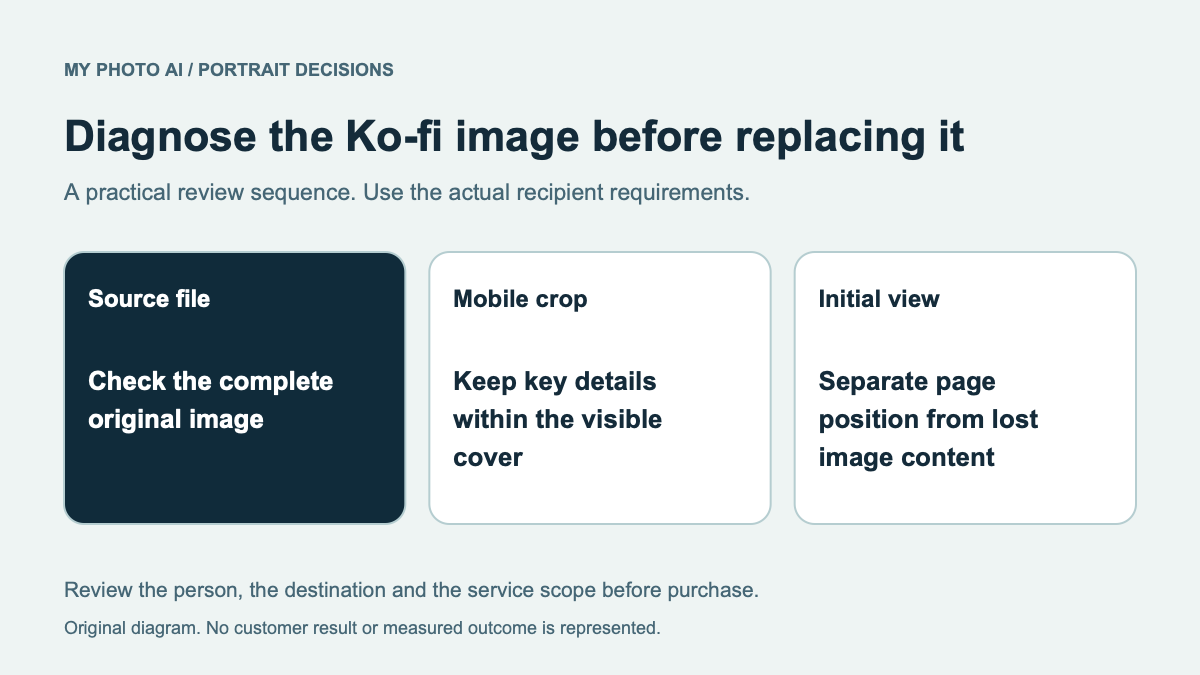
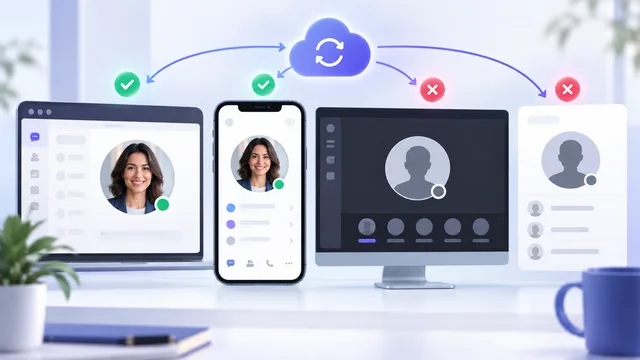
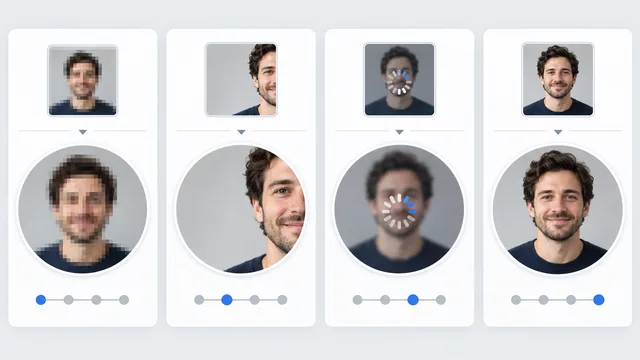
Start with the source, not a mystery setting. A blurry WhatsApp profile picture usually comes from one of four places: the original is already soft, the file is too small, the crop makes the face tiny, or the upload did not finish cleanly. Run the checks below in order and stop when the result improves.
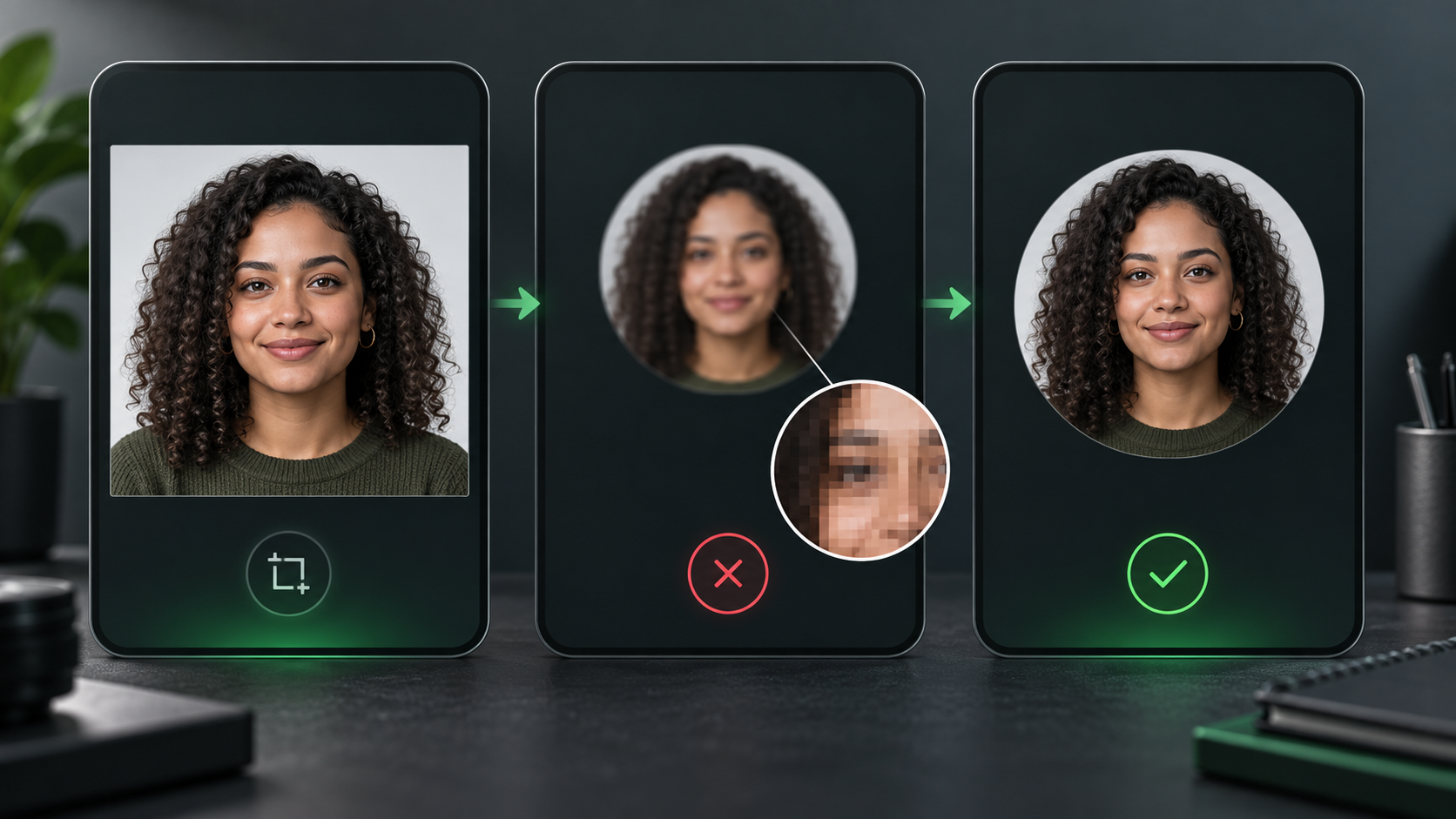
The diagnostic image separates source quality from upload quality so you do not keep repeating the same failed upload.
Identify the blur before you fix it
Open the original photograph in your phone's gallery and zoom to the eyes.
- Soft in the gallery: the source is the problem.
- Sharp in the gallery but blocky after upload: file size or platform processing is the likely problem.
- Sharp on your phone but soft on another device: allow time for the update, then check the connection and app version.
- Face looks tiny rather than technically blurry: the crop is the problem.
- Some contacts see no photo: check privacy settings instead of image quality.
Take one screenshot of the current result for your own comparison, if your device and privacy settings allow it. Do not use that screenshot as the next upload source because it has already been resized.
Check 1: use the original file
Find the camera original or the highest-quality exported copy. Avoid these common source traps:
- a screenshot of a profile photo;
- an image downloaded from a message thread;
- a thumbnail saved from a contact card;
- a photograph that was sharpened repeatedly;
- a tiny logo copied from a website header.
WhatsApp's own media guidance says profile photos do not use the HD-media option and recommends a source at least 192 pixels high and wide.1 Treat that as a floor, not a target. Starting from a larger, clean square gives the app more useful detail when it creates smaller versions.
Check 2: prepare a square before uploading
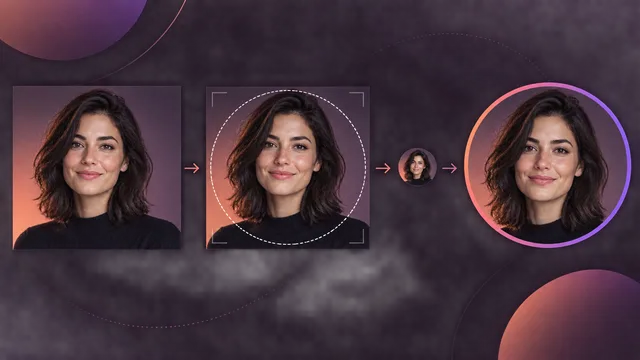
Make a duplicate of the original, then crop the duplicate to a square. Keep the face or logo centered because the visible profile image is circular.
For a face:
- Keep both eyes comfortably inside the center half of the square.
- Leave a little space above the hair.
- Include enough shoulders to make the crop feel intentional.
- Remove distracting corners that will partly survive the circular mask.
For a logo, add breathing room around the mark. Fine text and thin lines may disappear at contact-list size even when the file is technically sharp.
You can compare the crop against MyPhotoAI's profile picture maker and LinkedIn profile picture guide to see how a portrait behaves at small circular sizes.
Check 3: separate file quality from connection quality
WhatsApp's blurry-photo troubleshooting points to a missing local file, an unstable connection, or an outdated app as causes worth checking.2
Use a simple retest:
- Save the prepared square locally on the phone.
- Confirm it opens at full size while the phone is offline.
- Connect to reliable Wi-Fi or a stable mobile connection.
- Update WhatsApp if an update is available.
- Upload once, then wait before judging the result on another device.
Do not reinstall the app as a first step. That creates more work and does not repair a weak source image.
Check 4: replace the image through the profile editor
WhatsApp's profile editing guide confirms that the replacement should be selected from the device and saved through the profile editor.3
The exact labels can vary by device and rollout, but the reliable path is your profile settings, then the current profile picture, then the option to upload or choose a replacement. If you manage connected Meta accounts, check that the image you changed belongs to the intended profile.
Check 5: test at the size people actually see
A technically sharp portrait can still feel unclear when the face occupies only a small part of the circle. Shrink your prepared square until it is about the size of a contact-list avatar.
At that size, ask:
- Can you recognize the face immediately?
- Are the eyes separated from the background?
- Does hair merge into a dark wall?
- Is a logo still legible without its small text?
- Does the circle cut into the chin or hair?
If it fails, crop tighter before adding sharpening. Composition usually matters more than aggressive processing.
A controlled upload test
Use one source file and change only one variable at a time.
| Test | Change | What it tells you |
|---|---|---|
| A | Original crop | Baseline result |
| B | Tighter face crop | Whether the subject was simply too small |
| C | Fresh square export | Whether an old or compressed copy was the problem |
| D | Stable connection | Whether the first upload was incomplete |
Name the files clearly on your phone so you know which one produced each result. Delete the failed test copies only after you have chosen the winner.
What not to do
- Do not upload a screenshot of the blurry result.
- Do not add a heavy sharpening filter to hide missing detail.
- Do not export the same JPEG over and over.
- Do not place tiny text near the edge of the circle.
- Do not assume the HD option used for messages also applies to profile pictures.
- Do not change crop, size, format and connection all at once during diagnosis.
If the picture is missing for some people
That is probably not a blur problem. Review who can see your profile photo under WhatsApp privacy settings. A contact may also be seeing a cached or delayed version. Ask one trusted contact to close and reopen the app before you repeat the upload.
Build a stronger source portrait
If every crop exposes soft focus, start again with a clearer portrait. Face a window, clean the camera lens, keep the phone steady and focus on the nearer eye. MyPhotoAI's professional headshot guide covers a more polished setup, while the WhatsApp profile-picture page can help you explore a different visual direction.
The two-minute checklist
- Start from the original file.
- Confirm the eyes or logo edges are sharp.
- Crop a duplicate to a square.
- Keep the subject large inside the future circle.
- Use a file comfortably above the documented minimum.
- Save the file locally before uploading.
- Use a stable connection and current app version.
- Replace it through the profile editor.
- Wait, then check on one other device.
- Change one variable if you need another test.
The goal is not to defeat every bit of platform processing. It is to give WhatsApp a clean, well-framed source that remains recognizable after that processing happens.
 Profile Picture: 2024 Screenshot-Block, the Privacy Settings, and the Phone-Number Reality](https://myphotoai-images.duaranet.com/pseo/ai-couple-picture/ai-couple-picture-1.webp)