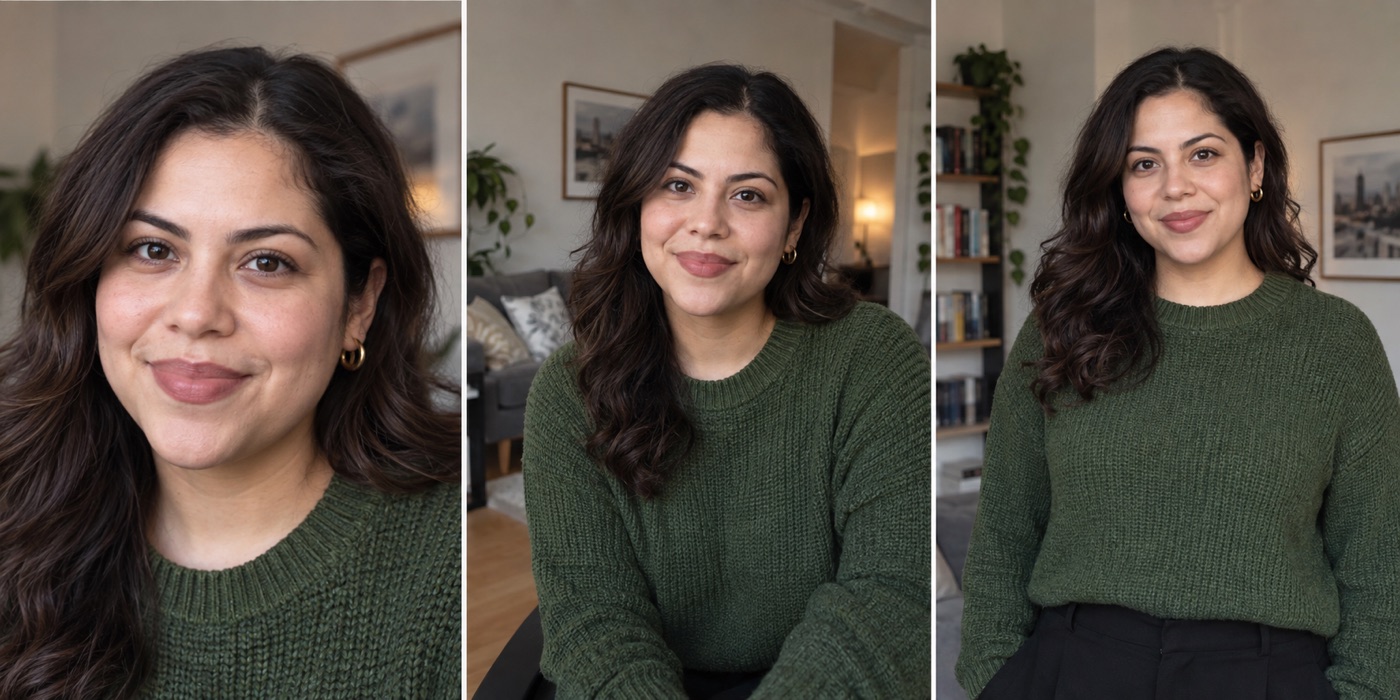
You have one portrait you actually like. It looks fine on LinkedIn, but Slack trims the shoulders and Zoom makes your face look tiny. You do not necessarily need three photo sessions. You need one good source file and three exports.
Start with a portrait that has room above the head and beside both shoulders. Save the original. Make a face-forward square for Slack, a slightly looser square for Zoom and a professional crop you have checked inside LinkedIn. The three views above illustrate the workflow, not an experiment across the apps.
Choose the method that fits your source photo
| Source in hand | Best next step | Watch for |
|---|---|---|
| Sharp image with space around your head | Export separate platform crops | Cutting hair or shoulders |
| Sharp but tightly cropped image | Use the same file, test each platform preview | Face too large in a small circle |
| Blurry or strongly filtered image | Retake or create a new source portrait | Re-exporting will not restore detail |
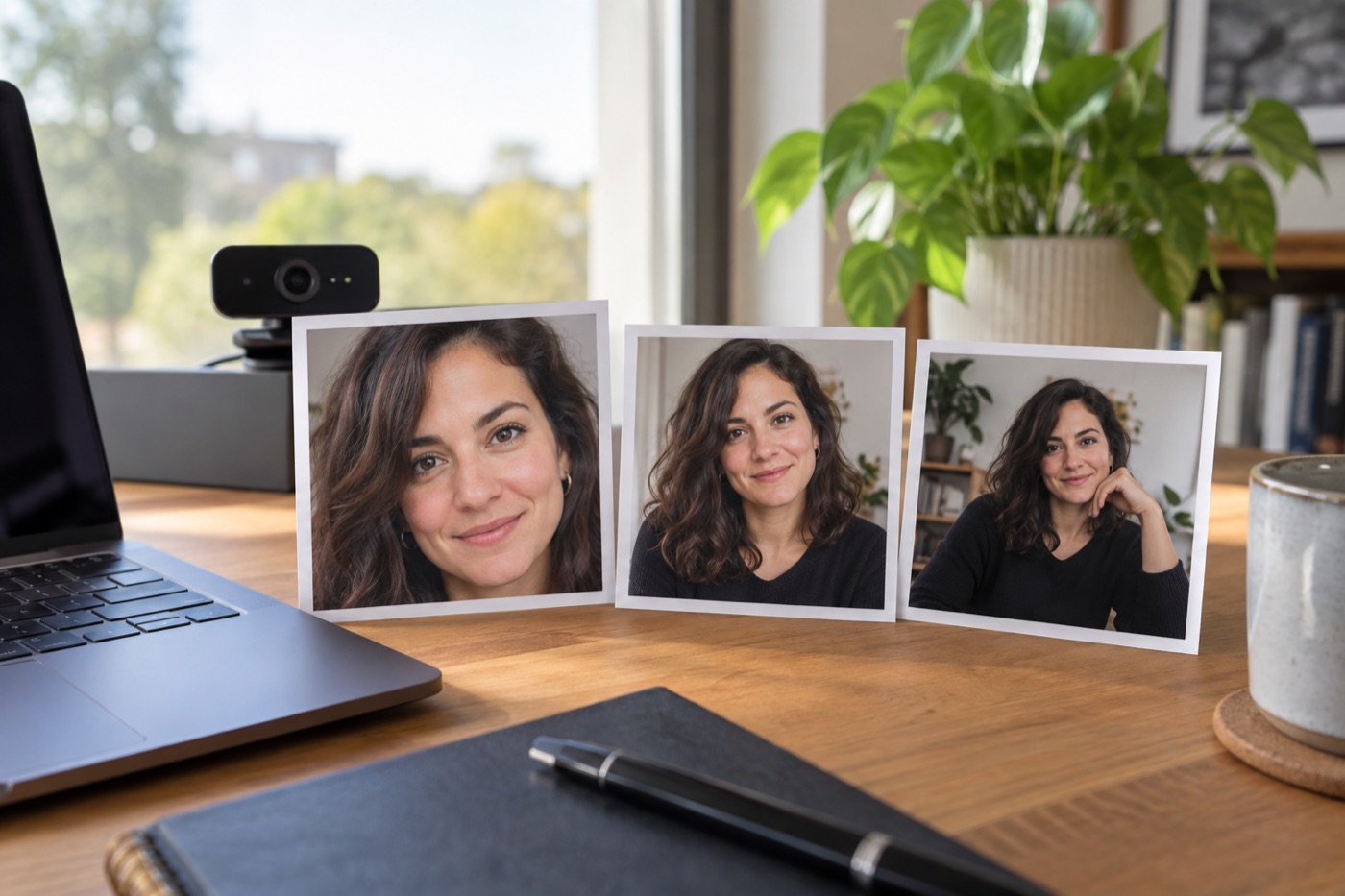
Illustration: keep the recognizable face, then adjust how much space surrounds it.
Slack's photo-upload instructions allow the framing to be adjusted and specify a square image between 512 and 1024 pixels on each side. 1 Zoom's profile-picture guidance accepts JPG, GIF or PNG below 2 MB and offers an in-product crop. 2 LinkedIn lets you reposition and crop a photo after upload. 3 These controls mean your exported squares are starting points, not a promise that all three apps will display exactly the same edges.
Use one identity, not one identical crop
Keep the same recognizable face and overall look. Let the framing change. Slack often appears beside a short message, so test at very small size. Zoom may show the portrait when your camera is off, so avoid an extreme crop that fills the whole tile with one eye and half a cheek. LinkedIn can carry a slightly more formal crop, but it should still look like the person coworkers meet.
If your source has no clean background or the face is too close to the phone, solve that first. The close-phone perspective guide and phone-timer portrait recipe cover those two problems. This article is about exporting once you have a usable portrait.
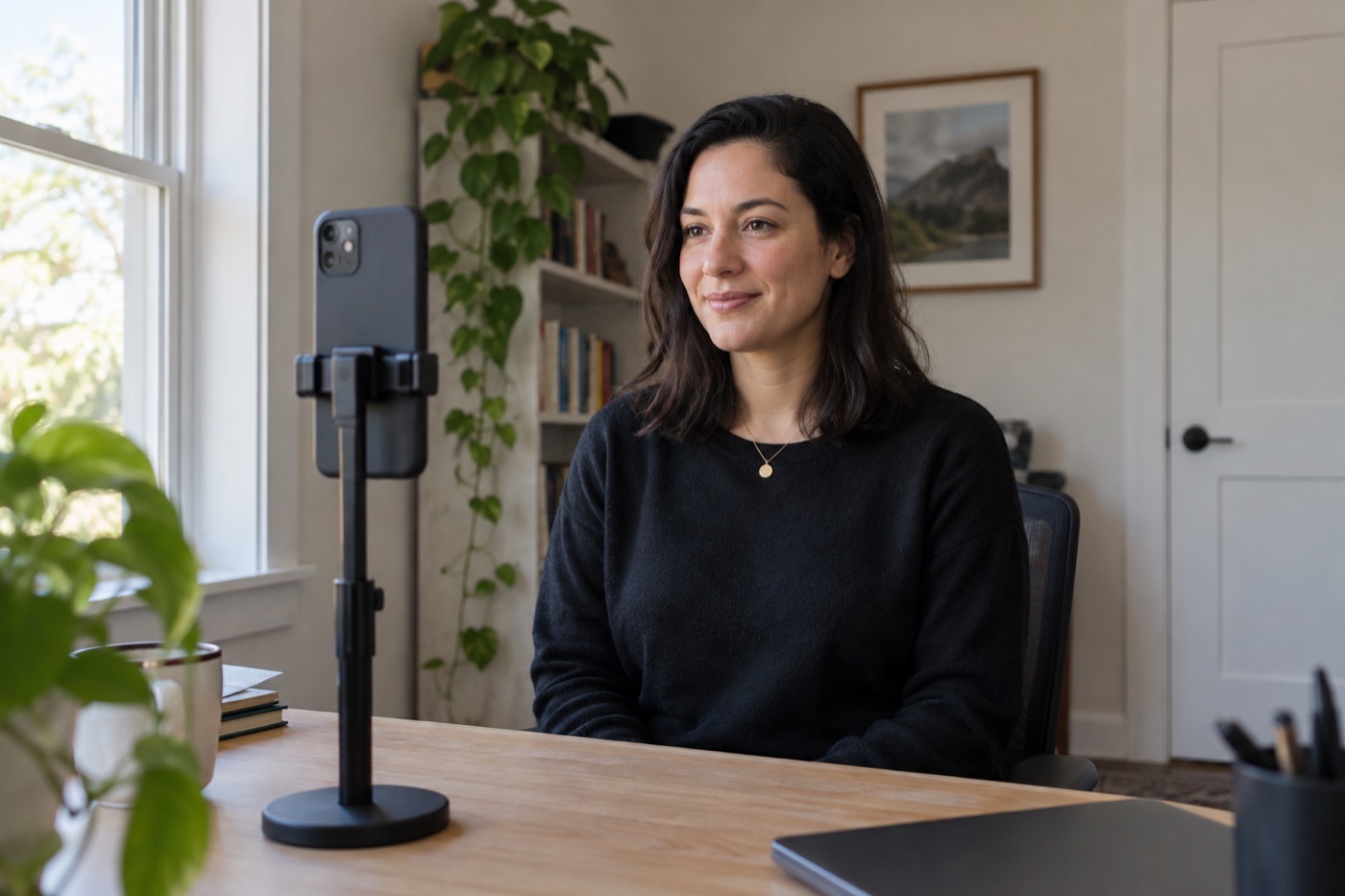
Illustration: leave space around the face in the source image before making platform crops.
The ten-second check: open each uploaded photo at its real display size. If you cannot recognize the face quickly, adjust the crop in that app before changing the source.


