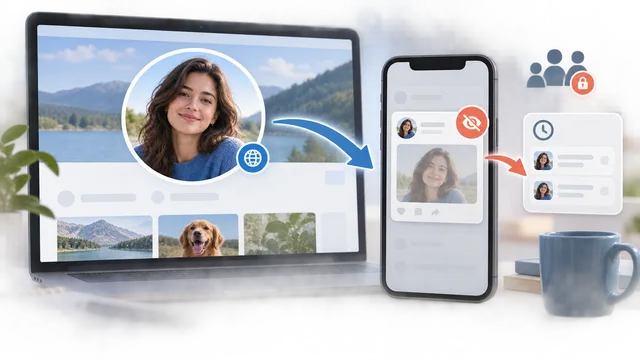
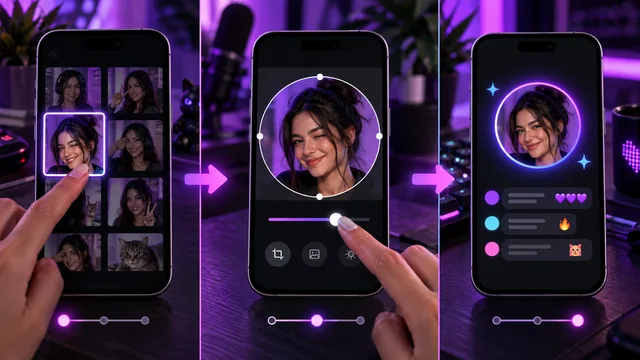
To make a Zoom profile picture appear when your camera is off, upload the image to the Zoom account you actually use, sign into the Zoom app before joining the meeting, and turn video off. If only your name appears, check whether you joined as a guest or whether the host or administrator enabled Hide participant profile pictures.

The four checks that solve most cases
| Check | Passing state | What a failure looks like |
|---|---|---|
| Picture exists | Image appears in your Zoom account profile | Account shows initials or a blank image |
| Correct account | App and web portal show the same identity | You uploaded to a different Google, work, or personal login |
| Signed in before joining | Meeting is connected to your profile | You joined from a link as a guest |
| Host allows pictures | Camera-off tile shows the image | Every camera-off participant shows a name or initials |
Zoom's current troubleshooting guide confirms that the user must be signed in for the meeting to connect to the account picture and that video must be off for the picture to display.1
Add or change the picture on the Zoom web portal
The web portal is the clearest place to confirm which account owns the image.
- Sign into the Zoom web portal.
- Open Profile.
- Select the edit control on the profile picture.
- Upload the image.
- Adjust the crop and save.
- Sign out and back into the Zoom desktop or mobile app if it still shows the old image.
Use a clear square portrait with enough room around the head. Zoom will show it inside different tile shapes, so avoid placing the face against an edge. The business-casual headshot lookbook can help you choose a picture that remains professional when the camera is off.
Add the picture in the mobile app
Zoom's current mobile route is:
- Sign into the Zoom mobile app.
- Tap More in the bottom-right corner.
- Tap your name.
- Tap Profile Photo.
- Take a new photo or choose one from the phone.
- Save, then return to the profile to confirm it appears.
If the photo picker cannot access your image, review the app's Photos permission in the phone settings. If the new picture appears on the web portal but not the app, sign out and back in before uploading again.
Change it during a desktop meeting
Zoom also documents an in-meeting desktop route:
- Join while signed into the desktop app.
- Right-click your own video tile.
- Choose Add Profile Picture or Edit Profile Picture.
- Select or crop the image.
- Save it.
- Turn video off to check the camera-off tile.
This option may be absent when the host hides participant pictures or when your account is managed by an organization. In that case, update the profile through the web portal and ask the host or administrator about the meeting setting.
Make the picture appear with camera off
Turning the camera off is a separate action from uploading the profile image.
On desktop, open Zoom settings and find the join-experience video option, or select Turn off my video before joining. On mobile, use the matching option under meeting settings or on the join screen.
Zoom's camera-on and camera-off guidance documents both desktop and mobile controls for joining meetings with video disabled.2
Once inside the meeting, choose Stop Video if the camera is running. Your uploaded profile picture should replace the live video only when the account and host settings permit it.
Why Zoom shows your name instead
You joined without signing in
A meeting link can let you enter as a guest. Zoom then has a display name but no authenticated profile from which to retrieve your picture. Leave, sign into the app, and rejoin from the signed-in client.
You used another login method
The account reached through Google, Apple, single sign-on, or email may not be the account where you uploaded the picture. Compare the account email in the app with the email shown in the web portal.
The host hides participant pictures
Zoom's host-setting documentation says Hide participant profile pictures in a meeting replaces participant pictures with names, including the host's.3
This is not something a participant can reliably override. Ask the host whether the setting is enabled, especially if no one in the meeting shows a camera-off picture.
Your app has not refreshed the profile
If the portal shows the new image but the app does not, sign out, close Zoom completely, reopen it, and sign in again. Check for an app update before reinstalling.
The source image is hard to read at tile size
A wide photograph or distant full-body pose may technically display but look like an indistinct patch. Crop from the shoulders upward, keep the face central, and use sufficient contrast between the subject and background. The exercises in the photogenic practice plan can help you choose a more readable frame.
A clean troubleshooting sequence
Run this sequence once instead of changing several settings at the same time:
- Confirm the picture in the Zoom web portal.
- Confirm the same account email in the Zoom app.
- Sign out and back in.
- Join a test meeting from the signed-in app.
- Turn video off.
- Ask whether the host hides profile pictures.
- Update the app if the image still does not appear.
If the picture appears in your own test meeting but not in a particular organization's meeting, the meeting or account policy is the strongest suspect.
Choose a picture that works as a camera-off presence
A Zoom avatar is often visible for an entire call, so use a current, recognizable image rather than an extreme crop or novelty graphic. A professional head-and-shoulders portrait usually survives both gallery and speaker views.
Check the source before uploading:
- sharp at full size;
- square crop available;
- face large enough for a small tile;
- simple background;
- current likeness;
- no tiny text.
The headshot size and dimensions guide explains why pixel dimensions, aspect ratio, and display size are different decisions. If another service also makes the photo look soft, use the Facebook profile-picture diagnosis to test the source before blaming Zoom.
Final answer
Upload the picture to the correct account, sign into the app before joining, and switch the camera off. If Zoom still shows only your name, compare account emails and ask the host about the profile-picture hiding control. Those checks resolve the identity and policy problems that repeated image uploads cannot fix.