You can reduce or remove the separate post announcing a Facebook profile-picture change, but you cannot make the current profile picture private. Facebook treats the current picture as public profile information. If your upload screen offers Share your update to News Feed, turn it off before saving. If that control is absent, change the picture, then immediately manage the resulting profile post through its audience menu or Activity Log.
Know what can and cannot be hidden
There are two different objects:
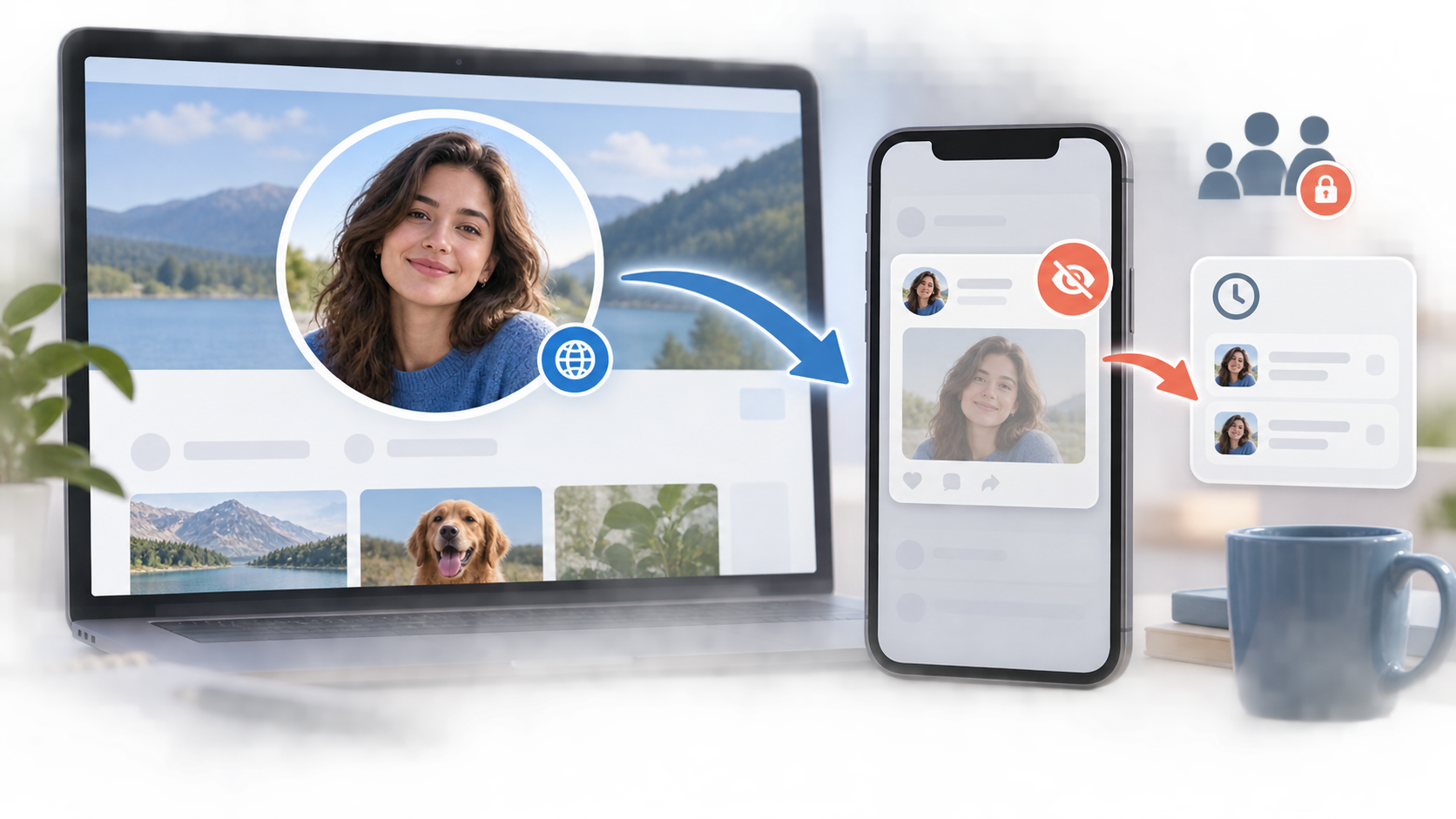
- The current profile picture. This becomes your public identity image beside your name.
- The change announcement. Facebook may create a profile post about the update and may distribute that post in friends' Feeds.
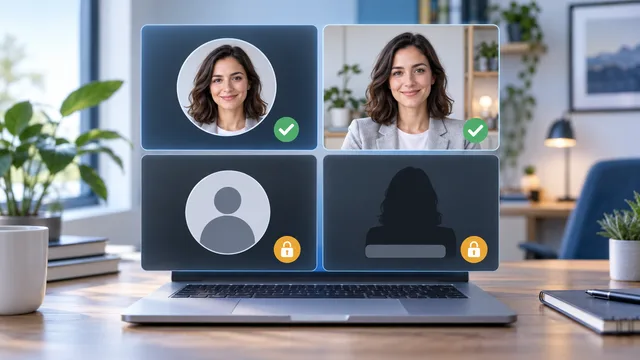
Changing the audience or visibility of the announcement does not make the current profile picture private. Facebook's visibility guidance says the current profile picture is public and that a change can be posted on your profile and may appear in friends' Feeds.1
That distinction is the answer most “silent update” tutorials miss. Your practical goal is to suppress or limit the announcement, not to conceal the avatar itself.
Method 1: turn off the Feed update before saving
Facebook tests and changes interface labels, so this control may not appear for every account, device, or profile type.
- Open your Facebook profile.
- Select the camera icon or edit control on the current picture.
- Choose or upload the new image.
- Adjust the crop.
- Look for Share your update to News Feed or a similarly worded option.
- Turn that option off if it is available.
- Save the picture.
Facebook's current replacement instructions route the change through the camera control on the profile picture, then let you select or upload and edit an image before saving.2
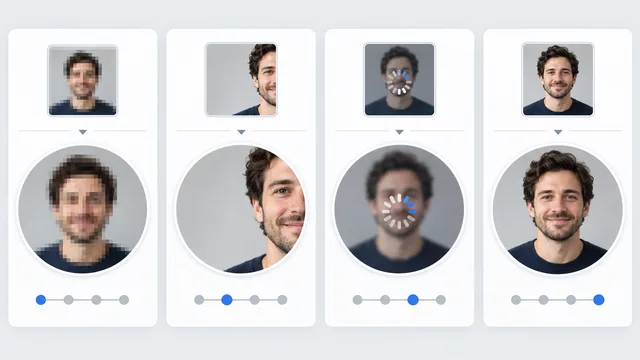
Before saving, use a square source with enough space around the face. Facebook displays the picture in small circular contexts, so check the crop with the headshot dimensions guide instead of relying only on the large editor preview.
Method 2: manage the announcement immediately after saving
If no Feed-sharing switch appears, save the new picture, return to your profile, and find the new profile-picture post.
Depending on the controls Facebook gives your account, open the post menu and look for an audience selector, Hide from profile, or a removal option. Choose the narrowest action that matches your goal:
- Change the post audience when you want to keep the item but limit who can see the announcement.
- Hide from profile when you do not want the announcement displayed on your profile surface.
- Delete the generated post only when you do not need that post or its comments.
The exact options vary by app version, account type, and region. Do not assume that “Hide from profile” erases the photo everywhere. The new current picture remains attached to your identity.
Use Activity Log if you cannot find the post
Facebook's interface can place the generated item below other recent activity. Instead of scrolling indefinitely, use Activity Log.
- Open your profile menu.
- Open Settings and privacy, then Activity log.
- Filter for posts, profile activity, or photos around the time of the change.
- Open the menu for the profile-picture update.
- Review the available audience, profile-visibility, or deletion controls.
Facebook describes Activity Log and Manage Activity as the tools for reviewing and managing posts, photos, videos, and other things you have shared.3
If the item is not visible there, check your Profile Pictures album and your public profile view. Facebook can show the image in several places even when there is no obvious Feed card.
Mobile and desktop paths
Facebook app
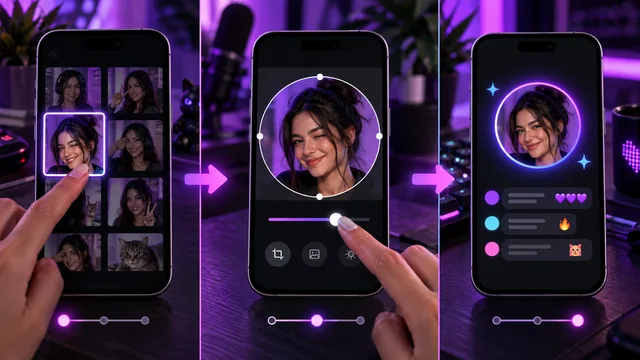
Tap your profile picture or name to open your profile, then tap the camera or edit control on the picture. Select the new image, check the crop, and inspect the final screen for a Feed-sharing control before saving.
After saving, remain on your profile long enough to look for the update post. If it appears, manage it before continuing to browse.
Desktop browser
Open your profile, select the camera control on the profile picture, upload or choose an image, adjust the crop, and examine the save dialog for sharing choices. A wider screen can make the audience and Feed controls easier to notice, but the available options still depend on the account.
If the app path is unclear, trying the browser is reasonable. It is not a guarantee that a missing privacy option will appear.
Verify the result instead of trusting your own view
Your signed-in view includes controls and private context that other people cannot see. After the change:
- Open your profile's View As or public-view tool if available.
- Check the profile from a private browser window while signed out.
- Ask one trusted friend whether they saw an announcement in Feed.
- Recheck Activity Log for the generated post.
This four-part check separates public avatar visibility from Feed distribution. The avatar should still be visible. The question is whether a separate update post remains broadly distributed.
Common mistakes
Setting the old picture's audience
Changing privacy on a previous profile photo does not change the public status of the current one. Make sure you are managing the newly generated post.
Uploading again when the crop looks blurry
A second upload can create another update event. First determine whether the problem is the original file, circular crop, or small thumbnail using the Facebook profile-picture blur diagnosis.
Assuming “Only me” makes the avatar private
An audience selector may apply to the post about the change. Facebook still identifies the current profile picture as public profile information.
Copying instructions from an old interface
Facebook regularly changes labels and placements. Follow the intent of the workflow: inspect the save screen, then manage the generated post if one appears.
A low-notification checklist
- Prepare the final square image before opening Facebook.
- Change the picture once.
- Disable the Feed update if that control appears.
- Check your profile for a generated announcement.
- Manage that post's audience, profile visibility, or existence.
- Confirm the result through Activity Log and a public view.
- Remember that the current profile picture itself remains public.
If you use the same portrait on other services, prepare a clean master before uploading. The Instagram profile-picture checklist explains circular safe areas, and the WhatsApp blur checklist helps distinguish source quality from platform display.